ThinkPad Pen Tablets

ThinkPad 710T

Machine Type 2523 · 1993 · 35 sections

ThinkPad 710T pen tablet.

Product Overview #

The ThinkPad 710T is an early tablet-style computer released by IBM, designed for pen-based computing.

Feature Description
Processor (MHz) 486SLC2 25-MHz
Bus Architecture AT Bus
Memory (Standard) 4MB RAM
Memory (Maximum) 12MB RAM
VGA Video 640 x 480 resolution Support for 16 concurrent gray scales
Hard Drive 60MB (HDD model) ThinkPad file card (TPF model)

General Checkout #

Note: If the Resume/Suspend Switch is not held in the On
       position when the computer is powered-on, the user defined screen
       appears.
 DID EITHER THE EASY-SETUP OR PASSWORD MENU SCREEN APPEAR ?

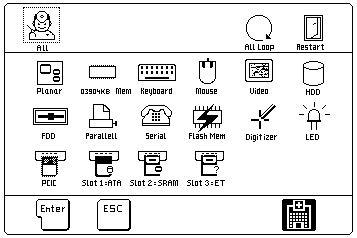
Note: Installed devices are displayed in a dark shade, devices not installed are displayed in a gray shade.
  1. 010: Is the displayed configuration correct with the installed devices?
  2. 011: Select All on the Test Menu and go to Step 12. (Diagnostic test will run on all devices displayed in a dark shade.)
  3. 012: Did the tests find a device error?
    A device error is displayed with an X over the device. The device ID (XXX), an error description code (YY), and FRU code (ZZZZ) are displayed.
    For example:
Note: If the test stops or hangs when the test is running, replace the last device that was tested.
  1. 013: The error was not detected by the test:
    • No:
      • Check that the cables and connectors are not damaged.
      • Reconnect all adapters, drives, and modules, then test the computer several times. An All Loop option is available for looping all the tests. To exit from the looping, select the test icon on the right, bottom corner of the screen at the time sequence between each test.
      • If no error is detected, go to 'Symptom-to-FRU Index' and use the user reported symptom.
      • If any errors are detected, go to 'FRU Codes'.
    • Yes: Proceed to step 014.
  2. 014: Note the error codes shown on the screen and go to 'FRU Codes' and replace the appropriate FRU.

The ThinkPad 710T is an early tablet-style computer released by IBM, designed for pen-based computing.

The diagnostic tests are intended to test only IBM products. Non-IBM products or modified options can give false errors and invalid responses.

- Power-off the computer and all external devices.
  - Check that all the cables and the power cord are properly connected.
  - Power-on the computer while holding the
    Suspend/Resume switch in the On position.
    Check for the following responses:
  ° The power on indicator lights.
  ° The Suspend/Resume indicator works as the
    power on indicator when the power switch is pressed.
  ° One long beep sounds.
  ° Memory test begins (memory size appears on the top-left corner
    of the screen) and the Easy-Setup screen or Password
    Menu
 screen appears.
NOTE: If the Resume/Suspend Switch is not held in the On
       position when the computer is powered-on, the user defined screen
       appears.
 DID EITHER THE EASY-SETUP OR PASSWORD MENU SCREEN APPEAR ?

710_3
  1. 002: Did either the Easy-Setup or Password Menu screen appear?
    • No: Go to step 004.
    • Yes: Proceed to step 003.
  2. 003:
    • Enter the password on Password Menu screen, if it appeared.
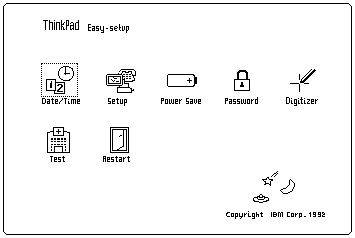
    • Select Test on the Easy-Setup screen and go to Step 007.
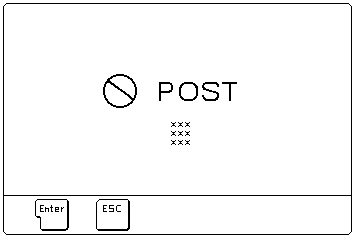
  3. 004: Did the following screen appear?
710_4
  1. 005: Did the following screen appear?
    • No: Note the symptom. If the power does not come on completely, go to 'Power Systems Checkout' and follow the procedure. If the power is on, but the expected screen does not appear, go to 'Symptom-to-FRU Index'.
    • Yes: Proceed to step 006.
  2. 006: Note all error codes on the screen. Go to 'Symptom-to-FRU Index' and find the error code and follow the instruction. If the problem remains, go to 'Undetermined Problems'.
  3. 007: Did the Test Menu appear?
710_5
  1. 008: Did the Test Menu appear?
  2. 009: Is the displayed configuration correct with the installed devices? (Note: Installed devices are displayed in a dark shade, devices not installed are displayed in a gray shade.)
  3. 010: Is the displayed configuration correct with the installed devices?
  4. 011: Select All on the Test Menu and go to Step 012. (Diagnostic test will run on all devices displayed in a dark shade.)
  5. 012: Did the tests find a device error? (A device error is displayed with an X over the device. The device ID (XXX), an error description code (YY), and FRU code (ZZZZ) are displayed.)
730_6
  • XXX: Device ID
  • YY: Error Description Code
  • ZZZZ: FRU Code
Note: If the test stops or hangs when the test is running, replace the last device that was tested.
  1. 013: The error was not detected by the test:
    • No:
      • Check that the cables and connectors are not damaged.
      • Reconnect all adapters, drives, and modules, then test the computer several times. An All Loop option is available for looping all the tests. To exit from the looping, select the test icon on the right, bottom corner of the screen at the time sequence between each test.
      • If no error is detected, go to 'Symptom-to-FRU Index' and use the user reported symptom.
      • If any errors are detected, go to 'FRU Codes'.
    • Yes: Proceed to step 014.
  2. 014: Note the error codes shown on the screen and go to 'FRU Codes' and replace the appropriate FRU.

Symptom-to-FRU Index #

Note: For IBM devices not supported by ThinkPad 710T diagnostic code, refer to the manual for that device.

The Symptom-to-FRU Index lists the symptoms and errors and the possible causes. The most likely cause is listed first. Use this index to help you decide which FRUs to have available when servicing a computer.

For errors indicated by the diagnostic tests, see 'FRU Codes'. If the symptom is not listed, go to 'Undetermined Problems'.

In the following error codes, X can be any number.

NOTE: For IBM devices not supported by ThinkPad 710T diagnostic code, refer to the manual for that device.

Numeric Error Codes #

Symptom / Error FRU / Action
10X 1. System Board
110 (Check 'Memory Checkout' before changing any device.) 1. SIMM Card
2. System Board
111 1. Option Bus
2. System Board
161 1. Refer to 'Backup Battery Test'
2. System Board
162 (See 'Checking the Inst. Devices List' before changing any FRU.) 1. Check Device Configuration
2. System Board
3. Diskette Drive Assembly
4. Hard Disk Drive Assembly
5. Diskette Drive Cable
6. Hard Disk Drive Cable
7. Modem Card
163 1. Set Time and Date.
2. System Board
164 (See 'Memory Checkout' before changing any FRU.) 1. Check Device Configuration.
2. SIMM Card
3. System Board
199 1. Refer to 'Checking the Installed Devices List'
1XX 1. System Board
20X 1. System Board
2. SIMM Card
21X 1. SIMM Card
2. System board
2XX (See 'Memory Checkout' before changing any FRU.) 1. System Board
2. SIMM Card
301, 31X 1. System Board
2. Keyboard
304, 305 1. System Board
2. Mouse
308 1. System Board
3XX 1. Keyboard
2. Mouse
3. System Board
601, 6XX (Go to the 'External Diskette Drive Test' before changing any FRU.) 1. System Board
2. Diskette Drive Assembly
3. Diskette Drive Cable
602 1. Diskette Drive Assembly
9XX 1. System Board
2. Parallel Device
11XX 1. System Board
2. Serial Device
12XX 1. System Board
2. Serial Device
3. Communication Cable
17XX 1. Disk Drive Assembly
2. System Board
24XX 1. System Board
2. LCD Assembly
5001 - 5016 1. System Board
2. LCD Assembly
5017 - 5020 1. LCD Assembly
2. System Board
8601, 8603 1. System Board
2. Mouse
86XX 1. Mouse
2. System Board
101XX 1. Modem Card
2. System Board
102XX 1. LED Card
2. System Board
3. Related Devices
I9990305 1. Operating System
2. OS device

FRU Codes #

If an error is detected by the diagnostic tests, a four-digit FRU code is displayed. The FRU code indicates two suspected FRUs.

Replace the FRU that is indicated by the two leftmost digits, then replace the FRU indicated by the two rightmost digits. No FRU is assigned to code 00. If only one FRU is suspected, the other FRU code is filled with 00.

Use the 'External Diskette Drive Test' to isolate diskette problems to a FRU.

If the problem still remains and the system board has not been replaced, replace the system board.

FRU Code FRU
10 System Board
20 Memory (See 'Memory Checkout'.)
30 Keyboard
31 Numeric Keypad
32 Keyboard, External
33 Mouse
35 Digitizer
36 LCD/Digitizer
40 LCD Assembly
41 External CRT
50 External Diskette Drive
55 Hard Disk Drive
60 System Board
65 IC Card Memory
68 TPF Card
70 System Board, (Printer)
71 System Board, (Printer control)
80 LED Card
82 Switch Card Assembly
85 System Board, (Speaker)
86 DC-DC Card

Beep Symptoms #

Symptom / Error FRU / Action
Continuous beep. System Board
One beep and a blank, unreadable, or flashing LCD. 1. LCD Assembly
2. System Board
3. SIMM Card
4. DC/DC Card
One beep, and the message "Boot source (TPF) cannot be found" 1. TPF (in Slot 1)
2. System Board (TPF Controller)
One beep, and the message "Unable to access boot source" 1. TPF (in Slot 1)
2. System Board (TPF Controller)
One long, two short beeps and a blank or unreadable LCD. 1. System Board
2. LCD Assembly
One long beep followed by four short beeps each time you press the power on/off button. 1. Connect an AC adapter or install a fully charged battery. Computer cannot power-on due to low battery voltage.
One beep every second. 1. Connect AC adapter or install fully charged battery (allow computer to complete shutdown before changing the battery). Computer is shutting down due to low battery voltage.
Two short beeps. 1. POST error. See 'Symptom-to-FRU Index'
Three short beeps. Four short beeps every five seconds 1. Move computer to a cooler environment. Battery or computer high temperature threshold has been exceeded.
and a blank LCD. 1. System Board
2. SIMM Card
3. Modem Card

FRU Removals and Replacements #

reminpi   FRU Removals and Replacements

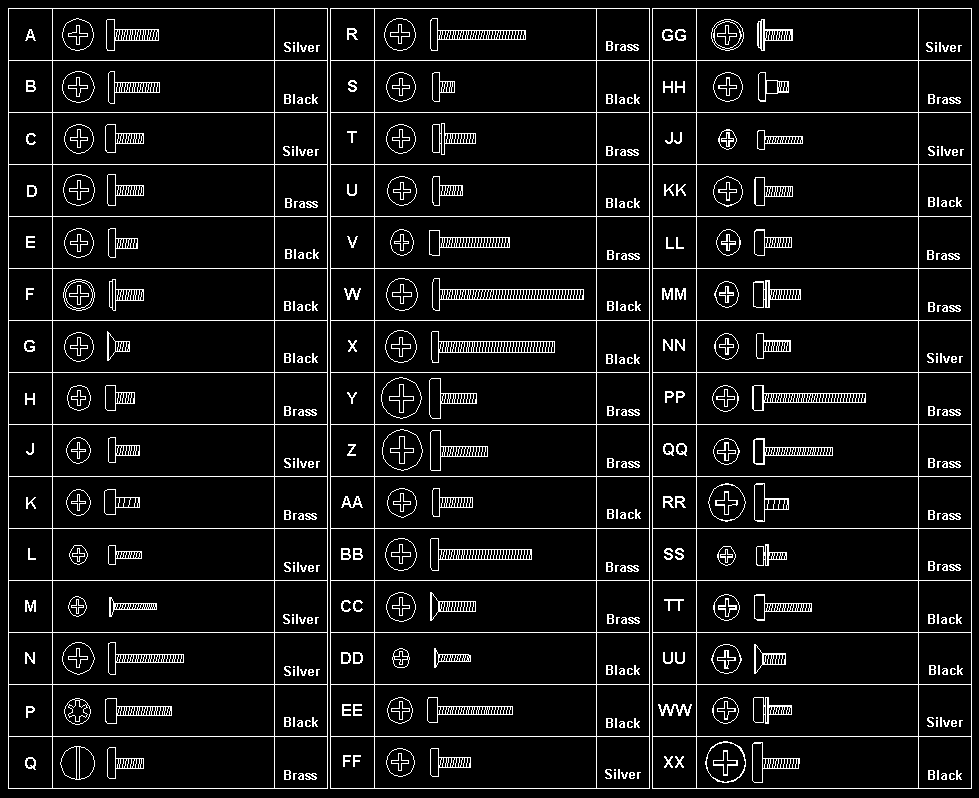
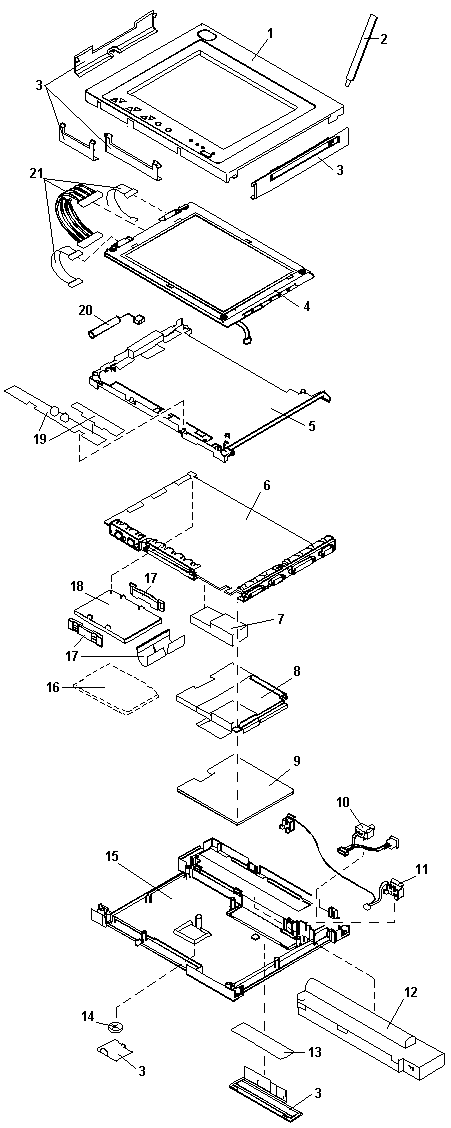
Follow the numerical sequence in the FRU removal sequence list and in the exploded view to remove or disconnect parts in the correct order. The letters in parentheses in the list indicate screw types.

See the 'Screw Size Chart', to match the letters to the correct screw type and size before replacing each screw.

warn3 

Saftey 8

Saftey 1

  1. Battery Pack (To replace the backup battery, use a coin to open the backup battery door on the bottom cover. Reset configuration after replacing the backup battery.)
  2. Four Bottom Cover Screws (2-B, 2-W) (At each corner)
  3. Top Cover Assembly
  4. One Bottom Cover Screw (X) (At center)
  5. LCD and Digitizer Cables
  6. LCD Assembly and Shield Cover Assembly
  7. Switch and LED Card
  8. Four Shield Cover Screws (Z) (At corners of shield cover)
    • Separate LCD assembly and shield cover (Perform digitizer calibration if the LCD assembly is replaced.)
  9. Standby Battery
  10. System Power Cable
  11. Seven System Board Screws (Y)
  12. System Board (Remove the backup battery, sub battery, DC/DC card and inverter card, and the hard disk drive from the old system board and install them on the new one. Check that the IC card bracket is in place before tightening the board screws. Perform digitizer calibration for the new system board.)
  13. One Screw (Y)
  14. Shield Kit and DC/DC Card
  15. Inverter Card
  16. Four Screws (T) (In system board holding hard disk drive)
  17. Hard Disk Drive

Back to

Parts Listing #

d2na5060

Safety Notice 8 #

warn3  Safety Notice 8

Before removing any FRU, power-off the computer, unplug all power cords from electrical outlets, remove the battery pack, then disconnect any interconnecting cables.

Avant de retirer une unité remplaçable en clientèle, mettez le système hors tension, débranchez tous les cordons d'alimentation des socles de prise de courant, retirez la batterie et déconnectez tous les cordons d'interface.

Die Stromzufuhr muß abgeschaltet, alle Stromkabel aus der Steckdose gezogen, der Akku entfernt und alle Verbindungskabel abgenommen sein, bevor eine FRU entfernt wird.

Prima di rimuovere qualsiasi FRU, spegnere il sistema, scollegare dalle prese elettriche tutti i cavi di alimentazione, rimuovere la batteria e poi scollegare i cavi di interconnessione.

Antes de quitar una FRU, apague el sistema, desenchufe todos los cables de las tomas de corriente eléctrica, quite la batería y, a continuación, desconecte cualquier cable de conexión entre dispositivos.

Safety Notice 1. #

warn3  Safety Notice 1

Before the computer is powered-on after FRU replacement, make sure all screws, springs, or other small parts are in place and are not left loose inside the computer. Verify this by shaking the computer and listening for rattling sounds. Metallic parts or metal flakes can cause electrical shorts.

Avant de remettre l'ordinateur sous tension après remplacement d'une unité en clientèle, vérifiez que tous les ressorts, vis et autres pièces sont bien en place et bien fixées. Pour ce faire, secouez l'unité et assurez-vous qu'aucun bruit suspect ne se produit. Des pièces métalliques ou des copeaux de métal pourraient causer un court-circuit.

Bevor nach einem FRU-Austausch der Computer wieder angeschlossen wird, muß sichergestellt werden, daß keine Schrauben, Federn oder andere Kleinteile fehlen oder im Gehäuse vergessen wurden. Der Computer muß geschüttelt und auf Klappergeräusche geprüft werden. Metallteile oder -splitter können Kurzschlüsse erzeugen.

Prima di accendere l'elaboratore dopo che é stata effettuata la sostituzione di una FRU, accertarsi che tutte le viti, le molle e tutte le altri parti di piccole dimensioni siano nella corretta posizione e non siano sparse all'interno dell'elaboratore. Verificare ci• scuotendo l'elaboratore e prestando attenzione ad eventuali rumori, eventuali parti o pezzetti metallici possono provocare cortocircuiti pericolosi.

Antes de encender el sistema despues de sustituir una FRU, compruebe que todos los tornillos, muelles y demás piezas pequeñas se encuentran en su sitio y no se encuentran sueltas dentro del sistema. Compruébelo agitando el sistema y escuchando los posibles ruidos que provocarían. Las piezas metálicas pueden causar cortocircuitos eléctricos.
Power Systems Checkout #

To verify the symptom of the problem, power-on the computer using each of the power sources available. If you suspect a power problem, see the appropriate power supply check listed below.

Power Management System #

The power management system controls the power applied to the computer, the modem card, and the printer by using the setup Program's Power Save menu. This system reduces the power drain on the battery when the computer power is on, but not actively being used.

Power-On Password #

passpi   Power-On Password

d2na7109 

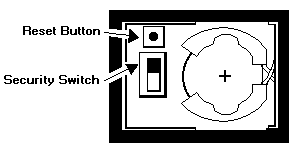
To disable the power-on password:

  1. Power-off the computer.
  2. Remove the backup battery cover.
  3. Locate the security switch beside the backup battery.
  4. Move the slide switch to the opposite side.
  5. Power-on the computer.

To enable the password again, select password on the Easy-Setup screen and enter the password.

AC Adapter Test #

  1. Unplug the AC adapter from the power outlet and the computer.
  2. Inspect the AC adapter for any signs of overheating or damage.
  3. Inspect the AC adapter power cord for cuts or damage. Replace the  power cord, if necessary.
  4. Plug the power cord into a power outlet. Listen for any sound that  might indicate defective operation.
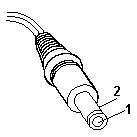
  5. Measure the output voltage at the AC adapter plug.

d2na7105 

Pin Voltage (Vdc)
1 +19 to +21
2 Ground (sleeve)
  • If the voltage is incorrect, but not 0, replace the AC adapter.
  • If the voltage is 0, check the power cord and the power outlet.
  • If the power cord and power outlet are OK, replace the AC adapter.
  • If the voltage is correct, suspect a short circuit or a  failure in the computer. Go to 'Short Circuit Test'

Battery Pack Test #

  1. Remove the battery pack.
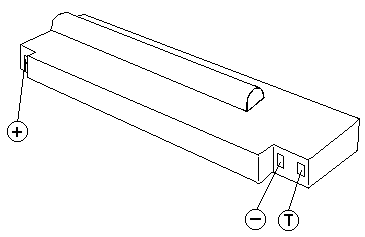
  2. Measure the voltage at the battery contacts as shown below.

d2na7106 

Contacts Voltage (Vdc)
+ +9.0 to +12.6
- Ground
  • If the voltage is not correct, charge the battery.
  • If the voltage is not correct after being charged,  replace the battery.
  • If the voltage is correct, suspect a short circuit or failure in the  computer. Go to the 'Short Circuit Test'

Use the following procedure to check if the thermal protection has tripped.

  1. Measure the resistance with an ohmmeter between the T and - contacts.
  2. The resistance should not be open (infinity). The thermal protection is detected when the temperature exceeds  70°C to 80°C (158°F to 176°F).  Wait until the battery temperature becomes normal, then  verify the resistance at the battery terminals. If it is open, replace  the battery.

Backup Battery Test #

  1. Remove the backup battery.
  2. Measure the voltage on the battery as shown below.

d2na7107 

Pole Voltage (Vdc)
+ +2.8 to +3.2
- Ground

If the voltage is not correct, replace the backup battery.

If the voltage is correct, a short circuit or a failure in the system board has occurred. Replace the system board.

Quick Charger Test #

  1. Make sure the AC adapter works correctly by using  the 'AC Adapter Test'
  2. Verify the battery pack is not thermal protected by using  the procedure on 'Battery Pack Test'
  3. Plug the quick charger to the AC adapter.  The charger power indicator should turn on.
  4. Install the battery pack, the charging indicator should start  blinking.
  5. Within 3.0 hours, the battery pack (not exhausted, standard  size) will be fully charged and the charging indicator changes  from blinking to constant on.

If the charger does not work as stated above, replace the quick charger.

Car Battery Adapter Test #

  1. Unplug the car adapter from the computer and the cigarette socket.
  2. Measure the cigarette socket voltage. It should be between 9.0 V  dc and 18.0 V dc.
  3. Plug the adapter into the car socket. Measure the output  voltage of the adapter.

d2na7105 

Pin Voltage (Vdc)
1 +19 to +21
2 Ground (sleeve)
  • If the voltage is incorrect, but not 0, replace the car battery  adapter.
  • If the voltage is 0, check that the adapter connector has good  contact with cigarette socket. If the  connection is good, replace the adapter.
  • If the voltage is correct, and the computer operates  with the AC Adapter, replace the car battery adapter.
  • If the voltage is correct, and the computer fails with AC adapter  also, perform the 'AC Adapter Test' procedure.

Memory Checkout #

Note: Before removing a SIMM card, power-off the computer.

Note: The system board contains the first 4MB of the memory.

NOTE: Before removing a SIMM card, power-off the computer.

Error code 110 indicates that a parity check error on the system board was detected. The error is caused by the SIMM card or the system board.

To isolate the FRUs, remove the SIMM card and run the memory test again.

  • If an error occurs without the SIMM  card, replace the system board.
  • Otherwise, replace the SIMM card.

NOTE: The system board contains the first 4MB of the memory.

Miscellaneous Symptoms #

Symptom / Error FRU / Action
No beep, Power-on LED not lit, and a blank LCD during POST. (See 'Power Systems Checkout' before replacing any FRUs.) 1. System Board
2. DC/DC Card
3. Power source when failing
No beep, Power-on LED lit, and a blank LCD during POST. (See 'Power Systems Checkout' before replacing any FRUs.) 1. System Board
2. Modem Card
No beep during POST but computer runs OK. 1. System Board (Speaker)
LCD screen unreadable or characters missing pels. 1. LCD Assembly
2. System Board
One or more keys do not work. 1. Keyboard
2. System Board
Computer does not respond to Pen input. 1. Pen
2. LCD Assembly
3. System Board
LCD backlight not functioning. 1. Inverter Card
2. LCD Assembly
3. Switch and LED Card
4. System Board
LCD backlight intensity not adjustable. 1. LCD Assembly
2. Switch and LED Card
3. System Board
LCD contrast not adjustable. 1. LCD Assembly
2. System Board
3. Switch and LED Card
System hang or intermittent hang. (See 'Undetermined Problems' before replacing any FRUs.) 1. Press Reset Button
2. System Board
3. Operating System
The computer does not suspend or resume. 1. System Board
The computer does not power off. 1. Press Reset Button
2. System Board
Real-time clock inaccurate. 1. Backup Battery
2. System Board
Printer problems. (See 'Printer checkout') 1. System Board
2. Parallel Port Device Cable
Serial or parallel port device problems. 1. Device
2. Device Cable
3. System Board
LED incorrectly remains off, but computer runs OK. 1. Switch and LED Card
2. System Board
Internal modem card does not communicate with a modem or FAX. 1. Verify that the setup data defined by the communication software is suitable for the communication.
2. Modem Card

If the problem remains, see 'Undetermined Problems'.

Undetermined Problems #

  1. Power-off the computer.- Remove or disconnect one of the following devices:

    • Any external device or cables (including the keyboard)
    • Internal modem card
    • Power-on computer power and run diagnostic tests.
    • If the symptom remains, repeat steps 1, 2, and 3 until you find  the failing adapter or device.
    • If all devices are disconnected and the symptom remains,  go to 'Power Systems Checkout' . If this does not solve the  problem, replace the system board.
    • If an intermittent problem remains after replacement of the  FRUs, consider external electrical noise that can have an  effect on the computer. Check that the EMC contacts on the  system board are not broken. The contacts are fragile and  can be easily damaged.

Checking the Installed Devices List #

If a device is installed but the icon appears in gray shade rather than dark shade on the Test Menu, it means that the device is defective. Make sure that the device is connected properly. If the symptom continues, replace the device or the system board.

FDD, Parallel, and Serial icons are always displayed in dark shade. That is, these icons represent adapters on the system board and do not represent external devices.

Short Circuit Test #

  1. Visually check the cables, wires, and connecters for any  short circuits, open wires, and damage.  If a short circuit or burned parts are found, replace the parts.
  2. Disconnect, then reconnect all the external devices  from the computer one by one and see if the same symptom appears.  If you find that an external device has a problem, follow the maintenance  procedure for that device.
  3. If the same symptom remains with no external devices connected, the  problem is in the computer. Isolate  the failing component in the computer by changing the FRUs one by  one until you find the problem. Replace the DC/DC card and the  system board first. If the symptom is that the battery becomes low on  power quickly, and all the  tests run without detecting any errors, replace the battery pack first.

Reset Button #

The reset button is used when the computer will not power-off or there is a system hang. The reset button resets the power supply regardless of the status of the microcode.

ThinkPad File (TPF) Card #

The TPF card is functionally equivalent to a hard-disk drive. However, the TPF card utilizes flash-memory for data storage. The TPF is rugged, noiseless, and uses very little power.

IC Card Controller #

The IC Card controller is integrated on the system board and can accommodate one IC card (HDD model) or three cards (TPF model) at the same time. The slots conform to the PCMCIA Type-2 and JEIDA V4.1.

Suspend and Resume Modes #

The suspend and resume modes are unique methods to minimize the use of power from the battery. When the computer enters suspend mode, one beep sounds and the Suspend/Resume indicator glows a steady orange. All tasks are stopped and their present states are stored in memory to save power.

When the computer returns to resume mode, the computer restores the same states as when it entered suspend mode. One beep sounds and the indicator glows a steady green when the resume operation is completed.

  • The computer enters suspend mode when:

  • A battery-low condition is detected
  • The Suspend/Resume switch is activated
  • When the computer is not actively used (Auto suspend)
  • The suspend function does not occur when a device is  connected to AT Bus, or a modem card is inserted in the IC Card slots.
  • The computer returns to resume mode when  the Suspend/Resume switch is switched on. While in the resume state,  the indicator blinks.

Screw Size Chart #

Use the chart to match the size and shape of the screws in the computer you are servicing.

screws1

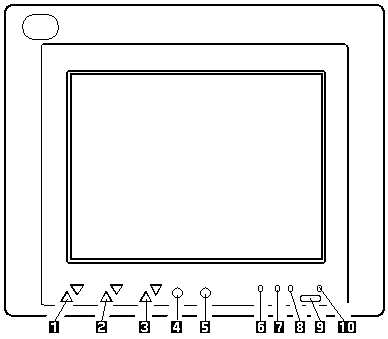
System Top View #

d2na7110 

  1. Speaker Volume Control Buttons
  2. Contrast Control Buttons
  3. Brightness Control Buttons
  4. Backlight ON/OFF Switch
  5. Reverse Video Switch
  6. Hard Disk Drive Indicator (HDD model)
  7. Battery Status Indicator
  8. Battery Charge Indicator
  9. Suspend/Resume Switch
  10. Suspend/Resume Indicator

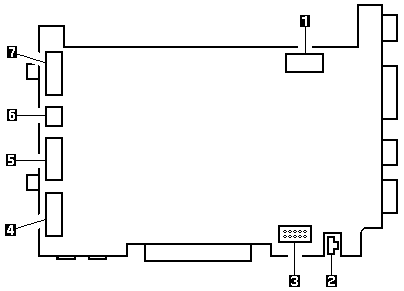
System Board Connector (Top View) #

d2na7113 

  1. Power Switch Cable Connector
  2. LCD Power Connector
  3. Switch and LED Card Connector
  4. Digitizer Cable Connector
  5. LCD Cable Connector
  6. Sub Battery Connector
  7. Digitizer Cable Connector

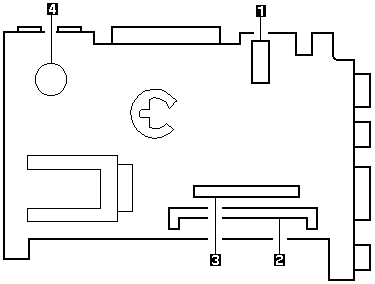
System Board Bottom View (TPF Model) #

d2na7114

  1. Inverter Card Connector
  2. SIMM Card Connector
  3. DC/DC Card Connector
  4. Speaker

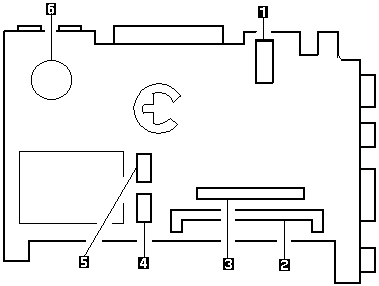
System Board Bottom View (HDD Model) #

d2na7115 

  1. Inverter Card Connector
  2. SIMM Card Connector
  3. DC/DC Card Connector
  4. HDD Connector
  5. HDD Connector
  6. Speaker