ThinkPad Laptops

ThinkPad 300

Machine Type 2615 · 1992 · 21 sections

First-generation business notebook (mono/color variants).

Product Overview #

The ThinkPad 300 was one of the very first ThinkPad models, manufactured by Zenith Data Systems for IBM.

Feature Description
Processor (MHz) 386SL 25-MHz
Bus Architecture AT Bus
Memory (Standard) 4MB
Memory (Maximum) 12MB
CMOS RAM 256KB
Video VGA
Diskette Drive 3.5-inch
Hard Drive 80MB 120MB

General Checkout #

Note: Press F1 to access the help screens.

The ThinkPad 300 was one of the very first ThinkPad models, manufactured by Zenith Data Systems for IBM.

warn  The diagnostic tests are intended to test only IBM products. Non-IBM products, prototype card, or modified options can give false errors and invalid computer responses.

  1. Power-off the computer and all external devices.- Insert the Advanced Diagnostics diskette into the diskette drive.- Power-on all external devices, then power-on the computer.- Press Ctrl+Alt+Ins to start the Monitor program.- At the Monitor-program prompt, type BF then press Enter.- Follow the instructions on the screen and run the diagnostics  tests. For information on how to disable a password,  see 'Power-on Password'
         **NOTE:** Press **F1** to access the help screens.
         - If you receive an error or message, find your symptom below, then go
            to the appropriate page.
    
Symptom Go to ...
Numeric Error Code 'Symptom-to-FRU Index'
Error Messages 'Miscellaneous Symptoms'

warn  For information about how to run diagnostics, passwords, and various other tests, go to 'Related Service Procedures'.

How to Run Advanced Diagnostics #

Note: Press F1 to access the help screens.

  1. Power-off the computer and all external devices.
  2. Insert the Advanced Diagnostics diskette into diskette drive.
  3. Power-on all external devices, then power-on the computer.
  4. Press Ctrl+Alt+Ins to start the Monitor program.
  5. At the Monitor-program prompt, type BF then press Enter .
  6. Follow the instructions on the screen and run the diagnostics  tests.

NOTE: Press F1 to access the help screens.

Symptom-to-FRU Index #

Note: For IBM devices not supported by the ThinkPad 300 diagnostic code, refer to the manual for that device.

The Symptom-to-FRU Index lists symptoms, errors, and the possible causes. The most likely cause is listed first. Use this index to help you decide which FRUs to have available when servicing the computer.

NOTE: For IBM devices not supported by the ThinkPad 300 diagnostic code, refer to the manual for that device.

For Error Codes see Numeric Error Codes

Numeric Error Codes #

**Symptom/Error** FRU/Action
200006 - Hard Drive Error 1. **Check drive cable connection.**
200007 - Hard Drive Error 1. **Check drive cable connection.**
200008 - Hard Drive Error 1. **Check drive cable connection.**
200009 - Hard Drive Error 1. **Check drive cable connection.**
200102 - Diskette Error 1. **Make sure diskette is properly formatted**
200103 - Diskette Error 1. **Make sure diskette is properly**
200104 - Diskette Error 1. **Remove any non-system diskettes when**
200105 - Diskette Error 1. **Reformat the diskette.**
200301 - Memory Error 1. **Power-off computer, wait 15 seconds,**
200302 - Memory Error 1. **Power-off computer, wait 15 seconds,**
200303 - Memory Error 1. **Power-off computer, wait 15 seconds,**
200304 - Memory Error 1. **Replace system board.**
200305 - Memory Error 1. **Perform BIOS update.**
200307 - Memory Error 1. **Charge battery, re-enter configuration**
200308 - Memory Error 1. **Make sure memory modules are properly**
200351 - PMI Error 1. **This message appears if an SVGA monitor**
200352 or 200353 - PMI Error 1. **Retry the operation after the computer is**
**finished accessing the diskette drive.**
200354 - PMI Error 1. **Insert the diskette that was in the computer**
200355 - PMI Error 1. **Retry the operation after modem or**
200402, 200403, 1. **Power-off computer, wait 15 seconds,**
200404, 200405 - Memory Error **then power-on.**
2. Replace system board.
200453 or 200459 - Configuration Error This message is normal after 1. **Use the Setup program to reconfigure.**
2. Replace backup battery.
3. Replace system board.
200552 - Error 1. **Verify keyboard is properly connected.**
200553 - Error 1. **Recharge the battery pack.**
200554 - Error 1. **Replace battery pack.**
200555 - Error 1. **Reboot computer and**
200558 - Error 1. **Try another copy of the software, or have**

FRU Removals and Replacements #

reminpi   FRU Removals and Replacements

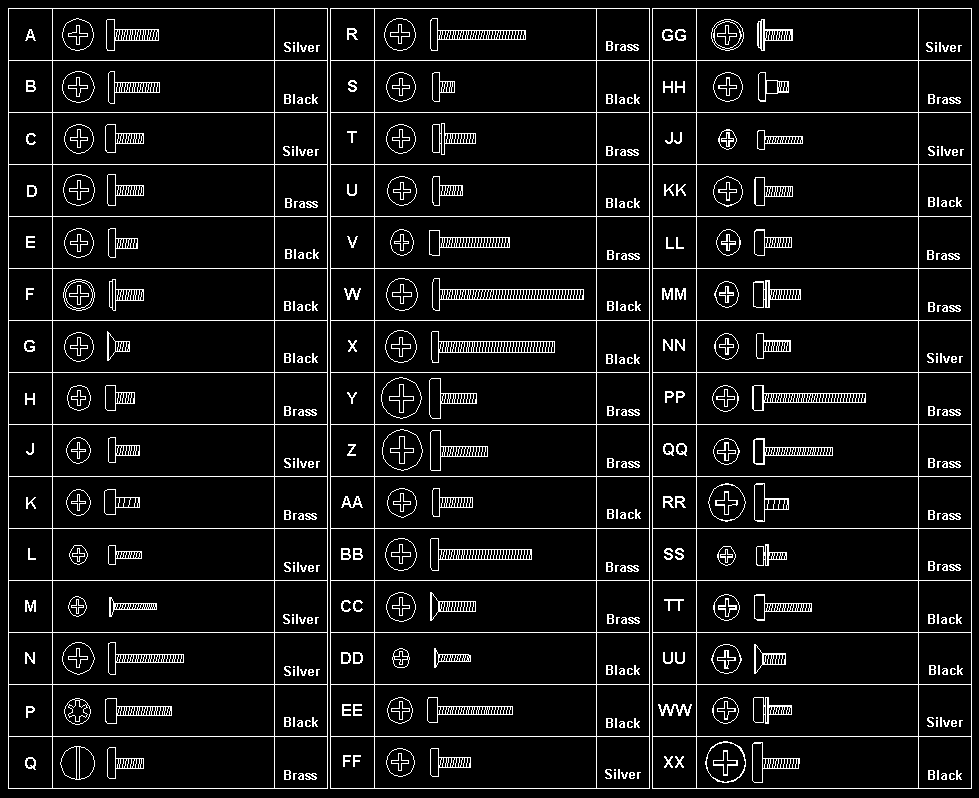
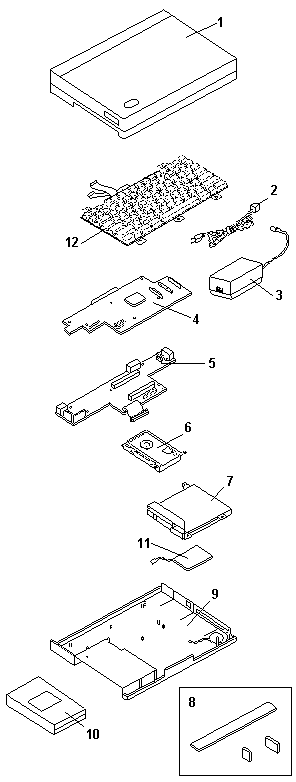
Follow the numerical sequence in the FRU removal sequence list and in the exploded view to remove or disconnect parts in the correct order. The letters in parentheses in the list indicate screw types. See the 'Screw Sice Chart' to match the letters to the correct screw type and size before replacing each screw.

warn3   **Safety 8

Safety 1**

    • Battery Pack

    • Coprocessor Cover
    • Three Top Cover Screws (1-B, 2-TT)
    • (At rear of keyboard)

    • Five Bottom Cover Screws (4-B, 1-UU)
    •    (One is inside battery compartment)
      
    • **LCD Cable**
    • **LCD Ribbon Cable**
    • **LCD Assembly**
    • **One Keyboard Screw** ([D](#screw-size-chart))   (At front of keyboard)
    • **Two Ribbon Cables**
    • **Keyboard Assembly**
    • **Four System Board Screws** ([D](#screw-size-chart))
    • **Two Threaded Hex Spacers**   (At rear of system board)
    • **System Board**
    • **Three Hard Disk Drive Screws** ([D](#screw-size-chart))
    • **Hard Disk Drive and Mounting Brackets**   (Have customer backup all information before replacing drive. Do   not replace the hard drive if the computer is operating or is in suspend   mode. Restore drive system information using the customer's backup   copy of the system programs.)
    • **Diskette Drive Ribbon Cable**
    • **Diskette Drive**
    • **Backup Battery**
    • **Speaker**
    • **Five Threaded Spacers**
    • **Video/Power Board**

Back to

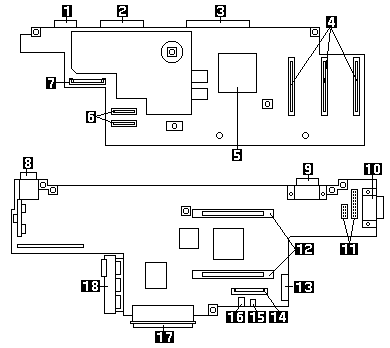
System Board Locations #

  1. Serial Connector
  2. Parallel Connector
  3. Port Replicator Connector
  4. Memory Module Connectors
  5. Math Coprocessor Connector
  6. Keyboard Connector
  7. Status Light Panel Connector
  8. AC Adapter Connector
  9. External Display Connector
  10. LAN Connector
  11. LCD Connectors
  12. System Board Connectors
  13. Modem Connector
  14. Diskette Connector
  15. Speaker Connector
  16. Backup Battery Connector
  17. Hard Disk Drive Connector
  18. Battery Contacts

d2na0610

Parts Listing #

d2na0630

Safety Notice 8 #

warn3  Safety Notice 8

Before removing any FRU, power-off the computer, unplug all power cords from electrical outlets, remove the battery pack, then disconnect any interconnecting cables.

Avant de retirer une unité remplaçable en clientèle, mettez le système hors tension, débranchez tous les cordons d'alimentation des socles de prise de courant, retirez la batterie et déconnectez tous les cordons d'interface.

Die Stromzufuhr muß abgeschaltet, alle Stromkabel aus der Steckdose gezogen, der Akku entfernt und alle Verbindungskabel abgenommen sein, bevor eine FRU entfernt wird.

Prima di rimuovere qualsiasi FRU, spegnere il sistema, scollegare dalle prese elettriche tutti i cavi di alimentazione, rimuovere la batteria e poi scollegare i cavi di interconnessione.

Antes de quitar una FRU, apague el sistema, desenchufe todos los cables de las tomas de corriente eléctrica, quite la batería y, a continuación, desconecte cualquier cable de conexión entre dispositivos.

Safety Notice 1. #

warn3  Safety Notice 1

Before the computer is powered-on after FRU replacement, make sure all screws, springs, or other small parts are in place and are not left loose inside the computer. Verify this by shaking the computer and listening for rattling sounds. Metallic parts or metal flakes can cause electrical shorts.

Avant de remettre l'ordinateur sous tension après remplacement d'une unité en clientèle, vérifiez que tous les ressorts, vis et autres pièces sont bien en place et bien fixées. Pour ce faire, secouez l'unité et assurez-vous qu'aucun bruit suspect ne se produit. Des pièces métalliques ou des copeaux de métal pourraient causer un court-circuit.

Bevor nach einem FRU-Austausch der Computer wieder angeschlossen wird, muß sichergestellt werden, daß keine Schrauben, Federn oder andere Kleinteile fehlen oder im Gehäuse vergessen wurden. Der Computer muß geschüttelt und auf Klappergeräusche geprüft werden. Metallteile oder -splitter können Kurzschlüsse erzeugen.

Prima di accendere l'elaboratore dopo che é stata effettuata la sostituzione di una FRU, accertarsi che tutte le viti, le molle e tutte le altri parti di piccole dimensioni siano nella corretta posizione e non siano sparse all'interno dell'elaboratore. Verificare ci• scuotendo l'elaboratore e prestando attenzione ad eventuali rumori, eventuali parti o pezzetti metallici possono provocare cortocircuiti pericolosi.

Antes de encender el sistema despues de sustituir una FRU, compruebe que todos los tornillos, muelles y demás piezas pequeñas se encuentran en su sitio y no se encuentran sueltas dentro del sistema. Compruébelo agitando el sistema y escuchando los posibles ruidos que provocarían. Las piezas metálicas pueden causar cortocircuitos eléctricos.

Power-On Password #

passpi   Power-On Password

To override a password, do the following.

  1. Power-off the computer.
  2. Remove the access panel.
  3. Remove the battery pack.
  4. Remove the top assembly (do not disconnect any cables).
  5. Connect a jumper to the two pads (R39) at the side of  the math coprocessor socket.
  6. Reinstall the battery pack.
  7. Power-on the computer. Keep the computer on until the LEDs blink and  the system locks.
  8. Remove the jumper.
  9. Press and hold the reset switch, then power-on  the computer.
  10. Power-off the computer.
  11. Replace the top assembly and the access panel.

Miscellaneous Symptoms #

**Symptom/Error** FRU/Action
AC Adapter connected, no charge light 1. **Replace AC Adapter**
Red Charge LED 1. **Replace battery**
No display and no status icons 1. **System board**
Display blank, any status icon on 1. **Top cabinet/LCD**
Rest/Resume problem 1. **Check setup**
Won't boot from diskette 1. **Check setup**
Won't boot from hard disk 1. **Check Setup**
Time/Date problems 1. **Backup battery**
LCD not readable 1. **Top cabinet/LCD**
No backlight 1. **Top cabinet/LCD**
'No system' 1. **Install the operating system.**
'Non-maskable interrupt received' 1. **If a software problem is suspected, have**
'Device failure ! 1. **Replace system board.**
'Remove floppy and re-insert to try again, else reboot' 1. **Follow the instructions listed. If this does**
**not work, power-off computer, wait**
'Device error during erasing process' 1. **Replace system board.**
'Device error during programming process' 1. **Replace DC-to-DC board.**
'Program verify failure' 1. **Replace system board.**

Failed Device to FRU Index #

Whenever a diagnostic test fails, an error message is displayed indicating what device failed. The following table cross references a failed device message to the failing FRU.

Diagnostic Message FRU
CPU 1. Main Board
Real Time Clock 1. Main Board
Math Coprocessor 1. Math Coprocessor 2. Main Board
DMA Controller 1. Main Board
Speaker 1. Bottom Cabinet Assy
Flash ROM 1. Main Board
Interrupt Controller 1. Main Board
Interval Timer Circuit 1. Main Board
System Control Processor 1. Main Board
COM1 Serial Port 1. Main Board
COM2 Serial Port 1. Main Board
Parallel Port (378H) 1. Main Board
Parallel Port (278H) 1. Main Board
CPU Crystal 1. Main Board
Interval Timer Crystal 1. Main Board
Interrupt Control Circuit 1. Main Board
PS/2 Mouse Circuit 1. Main Board
Video Controller 1. Video Board
Video Memory 1. Video Board
Hard Drive Controller (0) 1. Hard Drive 2. Video Board
Hard Drive (0) 1. Hard Drive 2. Video Board
Floppy Drive Controller 1. Video Board
Floppy Drive 1. Diskette Drive
Parity 1. Main Board
Cache Circuity 1. Main Board
Cache Data RAM 1. Main Board
Cache Tag RAM 1. Main Board
Base Memory 1. Main Board
Extended Memory 1. Memory Module 2. Main Board
Configuration RAM 1. Main Board
Modem 1. Modem 2. Video Board

Status Indicators #

Light       State              Status Indicated
 ------------------------------------------------------------------------------------------

d2na1019 
             Green              Battery pack is full.
             Amber              Battery pack is being fast charged.
             Amber (flashing)   Battery pack temperature is out of operational range.
             Red                Problem in battery circuit.
             Off                Computer is operating from battery pack.
                                Battery pack is removed from computer.
                                Computer is off.
                                Computer is using external power (car battery or AC power).
 ------------------------------------------------------------------------------------------  

d2na1001 
             On                 Computer is attached to AC power
 ------------------------------------------------------------------------------------------

d2na1003 
             On                 Standby mode is active
 ------------------------------------------------------------------------------------------

d2na1005 
             On                 Computer is operating from battery
 ------------------------------------------------------------------------------------------

d2na1010 
             On                 Hard disk drive is active
 ------------------------------------------------------------------------------------------

d2na1013 
             On                 Diskette drive is active
 ------------------------------------------------------------------------------------------

d2na1015 
             On                 Port replicator is attached
 ------------------------------------------------------------------------------------------

d2na1020 
             On                 External video is enabled
 ------------------------------------------------------------------------------------------

d2na1025 
             On                 Modem is enabled
 ------------------------------------------------------------------------------------------

d2na1030 
             On                 LAN controller is enabled
 ------------------------------------------------------------------------------------------

d2na1033 
             On                 Speaker is enabled
 ------------------------------------------------------------------------------------------

d2na1035 
             On                 Keyboard is in Num Lock mode
 ------------------------------------------------------------------------------------------

d2na1040 
             On                 Keyboard is in Caps Lock mode
 ------------------------------------------------------------------------------------------

d2na1050 
             On                 Keyboard is in Scroll Lock mode
 ------------------------------------------------------------------------------------------

d2na1045 
             On                 Imbedded keypad is locked on
 ------------------------------------------------------------------------------------------

PREP - Hard Disk Low Level Format #

The PREP utility initializes and prepares the hard disk surface for the storage of data. It performs a low-level format, then checks for bad sectors. If any bad sectors are found, they are marked in a way that prevents data from being stored in them.

There are two situations where PREP is used.

  • To prepare the hard disk drive surface for formatting when  installing a new hard disk drive.
  • To exclude sectors of the hard disk that have become  unusable, indicated by intermittent or continuous hard  disk drive read failures.

warn  PREP erases all data on the hard disk.

If at all possible, always back up the data on the hard disk to diskettes before running PREP.

Using the Advanced Utilities #

To use the advanced utilities, select Advanced Utilities from the Run Tests menu. Use the arrow keys to move the highlight to the proper utility. Instructions are provided on the screens when the utilities are selected.

Read or Set - LAN ID / Set EEPROM #

Read LAN ID

Select this field to read the current LAN ID number that is programmed into the main board.

Set LAN ID

Select this field to program a new LAN ID number into the main board.

Set EEPROM

Select this field to program the EEPROM. It allows you to set LCD display type (monochrome or color) and enable or disable the LAN option, if installed.

BIOS Update Procedure #

Note: Always operate the computer on AC power when updating the BIOS.

Use this procedure to reprogram the computer's BIOS. The computer contains the latest version of BIOS available when manufactured, but later revisions might be available. There are two reasons for replacing the BIOS.

  1. To have a more recent version of BIOS that adds features  that enhance the computer's performance.
  2. To reinstall the BIOS on a computer in which the BIOS  has become corrupt.

After you select this option, the current BIOS version will be displayed. You will be asked if you want to overwrite the current BIOS version. If you answer Yes, the computer will look for the BIOS image file on drive A and install it.

NOTE: Always operate the computer on AC power when updating the BIOS.

Screw Size Chart #

Use the chart to match the size and shape of the screws in the computer you are servicing.

screws1