Pre-ThinkPad IBM Portables

IBM CL57 SX

Machine Type 8554 · 1991 · 30 sections

IBM PS/2 CL57 SX color laptop.

Related Documents

Product Overview #

The IBM PS/2 CL57 SX is renowned for being IBM's first portable computer featuring a color TFT display.

Feature Description
Processor (MHz) 386SX 20 MHz
Bus Architecture Micro Channel
Memory (Standard) 2MB
Memory (Maximum) 16MB
Video VGA
Diskette Drive 3.5-inch
Hard Drive 80MB

General Checkout #

Step 008: - Press Ctrl+Alt+Del.  When the cursor moves to the upper right, press Ctrl+Alt+Ins to start the system program. If the IBM logo screen does not appear, insert the backup Reference Diskette into the diskette drive and repeat this step. 1. If you are not at the Main Menu, follow the instructions on the screen to advance to the Main Menu. If you cannot advance to the Main Menu, go to 'Symptom-to-FRU Index' - or - If that does not correct the problem, go to 'Undetermined Problem' NOTE: a. If the computer has an incorrect keyboard or numeric keypad response, go to 'Ext. Keyboard/Aux. Input Device Checkout' b. If the printer has incorrect responses, go to 'Printer Checkout' c. If the external CRT display has problems such as jittering, rolling, shifting, or being out-of-focus, then go to 'External Display Self-Test' 2. Press Ctrl+A and run the system checkout. IS THE LIST OF INSTALLED DEVICES CORRECT ? Go to 'Checking Installed Devices'
Step 010: - Run the diagnostic tests. DID THE TEST IDENTIFY A FAILURE ? NOTE: If the test stops and you cannot continue, replace the last device tested. - or - If any POST error code appears, go to 'Symptom-to-FRU Index' You might have an intermittent problem: ° Check for damaged cables and connectors. ° Reseat all adapters, drives, and modules. ° Start an error log and run the tests multiple times. ° Check the power supply in use when the error is reported (see 'Power Systems Checkout'). ° Check 'Symptom-to-FRU Index' If this did not fix +-+-+             the problem, go to 'Undetermined Problem' Go to 'Symptom-to-FRU Index'
Step 013: DID NOTHING APPEAR ON THE SCREEN ? ° If all system-status indicators do not appear for about 1 second, go to Step 016 under 'Power Systems Checkout' ° If the memory count is incorrect, go to 'Memory Checkout' ° Go to 'Symptom-to-FRU Index' If that does not correct the problem, +-+-+             go to 'Undetermined Problem' Go to 'Symptom-to-FRU Index' - or - If that does not correct the problem, go to 'Undetermined Problem'
Step 001: DOES THE PROBLEM APPEAR TO BE A POWER SUPPLY FAILURE? Go to Step 006
Step 003: DO ALL SYSTEM-STATUS INDICATORS REMAIN OFF? Go to Step 006
Step 005: - Make sure the power control switch at the rear of the computer is set to ON. - Go to 'Power Systems Checkout'
Step 006: - Power-off the computer and all external devices. - Check all cables and power cords. - Make sure no diskette is in the drive. - Power-on all external devices. - Power-on the computer and check for the following responses: 1. All system-status indicators appear once for about 1 second. NOTE: Some indicators remain on and others go off after 1 second. 2. Memory test (the number increases.) 3. Audible responses: One short beep - or - Two short beeps. DID YOU RECEIVE THE RESPONSES LISTED ABOVE ? Go to Step 013
Step 008: - Press Ctrl+Alt+Del.  When the cursor moves to the upper right, press Ctrl+Alt+Ins to start the system program. If the IBM logo screen does not appear, insert the backup Reference Diskette into the diskette drive and repeat this step. 1. If you are not at the Main Menu, follow the instructions on the screen to advance to the Main Menu. If you cannot advance to the Main Menu, go to 'Symptom-to-FRU Index' - or - If that does not correct the problem, go to 'Undetermined Problem' NOTE: a. If the computer has an incorrect keyboard or numeric keypad response, go to 'Ext. Keyboard/Aux. Input Device Checkout' b. If the printer has incorrect responses, go to 'Printer Checkout' c. If the external CRT display has problems such as jittering, rolling, shifting, or being out-of-focus, then go to 'External Display Self-Test' 2. Press Ctrl+A and run the system checkout. IS THE LIST OF INSTALLED DEVICES CORRECT ? Go to 'Checking Installed Devices'
Step 010: - Run the diagnostic tests. DID THE TEST IDENTIFY A FAILURE ? NOTE: If the test stops and you cannot continue, replace the last device tested. - or - If any POST error code appears, go to 'Symptom-to-FRU Index' You might have an intermittent problem: ° Check for damaged cables and connectors. ° Reseat all adapters, drives, and modules. ° Start an error log and run the tests multiple times. ° Check the power supply in use when the error is reported (see 'Power Systems Checkout'). ° Check 'Symptom-to-FRU Index' If this did not fix +-+-+             the problem, go to 'Undetermined Problem' Go to 'Symptom-to-FRU Index'
Step 013: DID NOTHING APPEAR ON THE SCREEN ? ° If all system-status indicators do not appear for about 1 second, go to Step 016 under 'Power Systems Checkout' ° If the memory count is incorrect, go to 'Memory Checkout' ° Go to 'Symptom-to-FRU Index' If that does not correct the problem, +-+-+             go to 'Undetermined Problem' Go to 'Symptom-to-FRU Index' - or - If that does not correct the problem, go to 'Undetermined Problem'

How to Run the Advanced Diagnostics #

  1. Power-on the computer.
  2. When the cursor moves to the upper right, press Ctrl+Alt+Ins to start the system program. If the IBM  logo does not appear, insert the backup copy of the Reference Diskette into  the diskette drive, press Ctrl+Alt+Del , then repeat this  step.
  3. Advance to the Main Menu.
  4. Press Ctrl+A to run the system checkout.

Symptom-to-FRU Index #

The IBM PS/2 CL57 SX is renowned for being IBM's first portable computer featuring a color TFT display.

The Symptom-to-FRU Index lists error symptoms and possible causes. The most likely cause is listed first. Always begin with 'General Checkout' This index also can be used to help you decide which FRUs to have available when servicing a computer.

If you are unable to correct the problem using this index, go to 'Undetermined Problem'

warn  If you have both an error message and an incorrect audio response, diagnose the error message first.

If you cannot run the advanced diagnostics tests, but did receive a POST error message, diagnose the POST error message.

If you did not receive an error message, look for a description of your error symptoms in the first part of this index.

Check all power supply voltages before you replace the system board. (See 'Power Systems Checkout')

If an error message is not listed, there is a device installed that requires an additional diskette or service manual. Refer to the diskette or service manual for that device.

How to Read POST Error Messages

POST error messages are displayed on the screen as 3, 4, 5, or 8 digits. The error messages that can be displayed as shorter POST messages are highlighted in the 'Symptom-to-FRU Index'

Numeric Error Codes #

In the 'Symptom-to-FRU Index', an X in an error message can be any number.

Symptom/Error FRU/Action
00010200, 00010300, 00010400, 00010700 1. System Board
00010800 1. System Board
2. Communications Cartridge
00011000 (See 'Memory Checkout' before replacing any FRUs.) 1. IC DRAM Card or Memory Module
2. System Board
000110XX 1. IC DRAM Card or Memory Module
2. System Board
000113XX 1. System Board
2. Communications Cartridge
3. Any Drive
000114XX 1. Communications Cartridge
000118XX 1. IC DRAM Card or Memory Module
2. System Board
00016100 1. See 'Testing the Backup Battery'
2. System Board
3. Voltage Converter
00016300, 00016400, 00016500, 00016900 (If setting configuration does not solve the problem, see 'Checking Installed Devices') 1. Set Configuration
2. System Board
3. Communications Cartridge
4. Hard Disk Drive
5. IC DRAM Card
6. Memory Module
000166XX 1. Communications Cartridge
000171XX 1. See Testing the Backup Battery'
2. System Board
000172XX 1. System Board
00017300 1. See Testing the Backup Battery.
2. System Board
3. Voltage Converter
00017400 (If Automatic Configuration does not solve the problem, run Advanced Diagnostics.) 1. Set Configuration
2. System Board
3. Math Coprocessor
00019000, 000191XX 1. System Board
00019200 1. Lid Switch
2. Keyboard Control Card
3. System Board
00019300 1. System Board
000199XX 1. System Board
0001XXXX (not listed above) 1. System Board
2. Communications Cartridge
3. Indicator Card
0002XXXX (See 'Memory Checkout' before replacing any FRUs.) 1. IC DRAM Card or Memory Module
2. System Board
00030100, 00030500 1. Keyboard Control Card
2. System Board
3. Keyboard or Numeric Keypad
00030200, 00030300, 00030400 1. System Board
2. Keyboard Control Card
3. Keyboard or Numeric Keypad
00030600 1. Keyboard or Numeric Keypad Auxiliary Input Device
2. Keyboard Control Card System Board
3. I/O Panel Assembly
0004XXXX 1. System Board
2. Any Parallel Device
3. Communication Cable
4. I/O Panel Assembly
000601XX 1. Diskette Drive
2. System Board
3. Diskette Drive Cable
000602XX 1. Defective Diskette
000655XX, 000662XX 000670XX to 000675XX 1. System Board
2. Diskette Drive
3. Diskette Drive Cable
0006XXXX Unsupported drive or cable. 1. Diskette Drive
2. System Board
3. Diskette Drive Cable
000720XX 1. System Board
2. Math Coprocessor
0007XXXX 1. Math Coprocessor
2. System Board
0011XX00 1. System Board
2. Serial Connector
3. Any Serial Device
4. Communication Cable
0014XXXX (See 'Printer Checkout' before replacing any FRUs.) 1. Printer
2. System Board
0024XX00 1. Display Control Card
2. Voltage Converter
005002XX, 005006XX, 005008XX 1. Display Control Card
2. Voltage Converter
3. External Display
4. I/O Panel Assembly
005004XX, 005010XX, 005032XX 1. Display Control Card
2. LCD Panel
3. LCD Cable
005009XX 1. External Display
2. Display Control Card
3. I/O Panel Assembly
00860100, 00860200 00861700, 00861800 1. Mouse or Trackball
2. System Board
3. Numeric Keypad
4. I/O Panel Assembly
0086XX00 1. System Board
2. Mouse or Trackball
3. Numeric Keypad
4. I/O Panel Assembly
0101XXXX 1. See 'Fax/Modem Checkout'
010436XX 1. System Board
2. Hard Disk Drive
3. Hard Disk Drive Cable
0104XXXX 1. Hard Disk Drive
2. System Board
3. Hard Disk Drive Cable
0130XXXX 1. Indicator Card
2. System Board
3. Keyboard Control Card
0137XXXX 1. Serial Adapter
2. System Board
3. Communication Adapter Holder
4. Any Serial Device
5. Communication Cable
0166XXXX, 0167XXXX 1. Adapter in Communications Cartridge
2. Communications Cartridge
I9990301 (Startup drive not found.) a. Select Set features from the Main Menu. the Reference Diskette and verify if the startup sequence is correct. b. Select Set features from the Main Menu. c. Select Set startup sequence. d. Check the list of devices on the screen.
I9990302 (Operating system not found.) 1. Make sure that an operating system is installed.
2. Hard Disk Drive
3. System Board
4. Hard Disk Drive Cable
I998XXXX, I9990303 (See 'Hard Disk Partition' before replacing any FRUs.) 1. Restore the system programs onto the system partition.
2. Set configuration
3. Hard Disk Drive
4. System Board
5. Hard Disk Drive Cable

Beep Symptoms #

Symptom/Error FRU/Action
Continuous beep. 1. System Board
Repeating short beeps. (See 'Ext. Keyboard/Aux. Input Device Checkout' before replacing any FRUs.) 1. Keyboard
2. Keyboard Control Card
3. System Board
One long and one short beep. 1. System Board
One long and two short beeps. 1. Display Control Card
2. System Board
One short beep and a blank, unreadable, or flashing display with no external display attached. (See 'CL57 LCD FRU Replacement Notice' before replacing any FRUs.) 1. LCD Panel
2. Display Control Card
3. System Board
4. LCD Cable
One short beep and Diskette Prompt or a program load from the hard disk or unable to read diskette. 1. Diskette Drive
2. System Board
3. Diskette Drive Cable
Two short beeps and a blank display. 1. System Board

CL57 LCD FRU Replacement Notice #

If missing or discolored dots appear on the LCD, carefully read the following note to determine whether you should replace the LCD.

warn  The LCD for the Model CL57 contains over 921000 thin film transistors (TFTs). A small number of missing, discolored or lighted dots (on all the time) is characteristic of TFT LCD technology, but excessive pixel problems can cause viewing concerns. The LCD should be replaced if the number of dots satisfies either of the following conditions:

  • The number of missing or discolored dots in any colored back ground,  except black, is 14 or more.
  • The number of lighted dots in a black background is 7 or more.

FRU Removals and Replacements #

reminpi   FRU Removals and Replacements

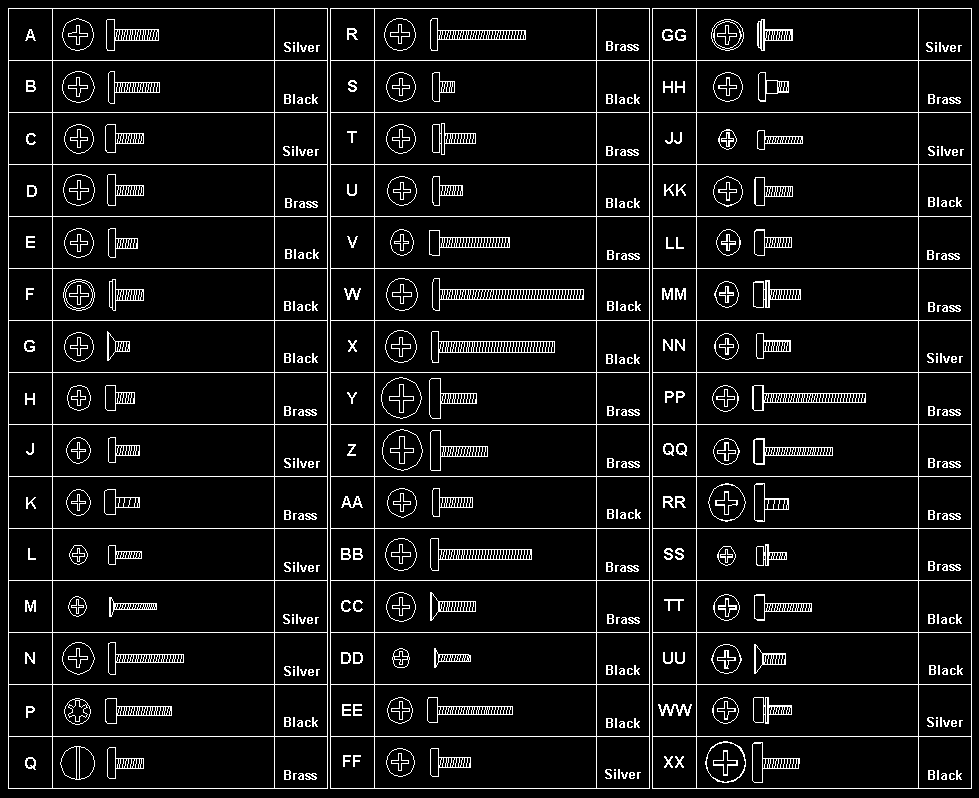
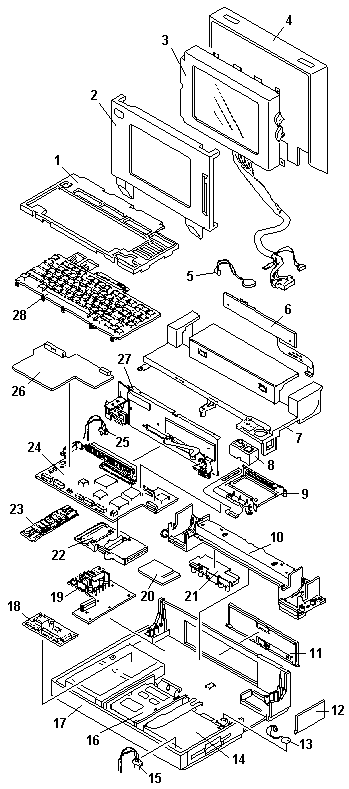
Follow the numerical sequence in the FRU removal sequence list and the exploded view to remove or disconnect parts in the correct order. The letters in parentheses in the list indicate screw types. See the 'Screw Size Chart' to match the letters to the correct screw type and size before replacing each screw.

warn3   **Safety 8

Safety 1**

  1. Battery Cover- Battery Pack- Hinge Covers- Six Screws (4-EE, 2-C)
       (One at each bottom corner and two through extensions at bottom of LCD)- **LCD Rear Cover**
         (To separate panel from rear cover, place screwdriver in small
    
         slit in bottom front of LCD panel and release latch.)- **Two Cables from LCD Assembly**- **Four Screws** ([LL](#screw-size-chart))
    
             (Two on each side)
    
             **LCD Assembly**- **Bend Back Thirteen LCD Panel Tabs**
    
             **Four LCD Panel Screws** ([MM](#screw-size-chart))
    
               (From back of panel)- **Separate LCD Panel and LCD Bezel**- **Three Bottom Cover Screws** ([LL](#screw-size-chart))
    
                   (At bottom-front)- **Keyboard Frame**- **Two Screws** ([MM](#screw-size-chart))
    
                       (At rear of keyboard)- **Loosen Keyboard**- **Four Screws** ([MM](#screw-size-chart))
    
                           (Look for **13** four times in illustration.)- **Loosen Top Cover**- **Two Ribbon Cables**
    
                               **Keyboard**
    
                               (Keyboard can be removed without removing top cover. However,
                               keyboard cables cannot be reconnected with top cover installed.)- **Trackball Cable**
    
                                 (At right-rear of keyboard)- **Indicator Card Cable**
    
                                   **Top Cover**
    
                                   (See step **14** Ensure that keyboard is removed before removing top
                                  cover.)- **Two Trackball Assembly Screws** ([LL](#screw-size-chart))- **Trackball Assembly**- **Speaker Cable**- **Four Screws** ([LL](#screw-size-chart))
    
                                           (Two indicator card screws from rear and two speaker retainer bracket
    
                                           screws from bottom)- **Indicator Card**
    
                                             (When replacing indicator card, ensure that speaker volume switch and
    
                                             power-on switch fit into their respective slots in top cover.)- **Speaker**- **Two Diskette Drive Ribbon Cables**- **Four Diskette Drive Screws** ([LL](#screw-size-chart))- **Micro Switch Cable**- **Diskette Drive and Mounting Bracket**- **Two Hard Disk Drive Ribbon Cables**- **Four Hard Disk Drive Screws** ([LL](#screw-size-chart))- **Hard Disk Drive and Mounting Bracket**
    
                                                             (Have customer backup all information on hard disk drive before
    
                                                             removal. When replacing hard disk drive, use customer's
    
                                                             backup Reference Diskette to restore system partition.)- **Backup Battery**- **Keyboard Control Card Ribbon Cable**- **Three Keyboard Control Card Screws** ([NN](#screw-size-chart))- **Keyboard Control Card**- **Display Control Card Ribbon Cable**
    
                                                                       (Press and hold metal clips on each side of cable connector.)- **Two Display Control Card Screws** ([LL](#screw-size-chart))- **Display Control Card**- **Two Hinge Support Screws** ([LL](#screw-size-chart))
    
                                                                             (On hinge support)
    
                                                                           **Six Screws** ([4-PP, 2-QQ](#screw-size-chart)) **and Hinge Assemblies**
    
                                                                             (Three screws on each side)- **Loosen Hinge Support**
    
                                                                               **Two Regulator Card Cables**- **Three Regulator Card Screws** ([LL](#screw-size-chart))- **Regulator Card**- **Two I/O Connector Ribbon Cables**- **Two Threaded Spacers**- **Three Modem Guide Screws** ([V](#screw-size-chart))- **Two Threaded Hex Spacers**
    
                                                                                           (At each end of system board)- **Voltage Converter Cable**
                                                                                           **System Board Cable (upper left)**
    
                                                                                             **System Board and Mounting Bracket**
    
                                                                                             (When installing system board, ensure that power control switch on
    
                                                                                             I/O panel is set to On. Also, run Automatic Configuration and set
    
                                                                                             time and date. Transfer math coprocessor (if installed) to new
    
                                                                                             system board.)
    
                                                                                             **IC DRAM Card Connector**
    
                                                                                             (Connected under system board.)- **Two I/O Connector Screws** ([LL](#screw-size-chart))- **I/O Connectors and Cover**- **Six Voltage Converter Card Screws** ([SS](#screw-size-chart))- **Two Threaded Spacers**
    
                                                                                                     (On voltage converter card)
    
                                                                                                     **Battery Cable**- **Voltage Converter Card**
    
                                                                                                       (Be careful to use correct screws to replace voltage converter.
    
                                                                                                       Bottom cover can be cracked.)
    

Back to

Locations #

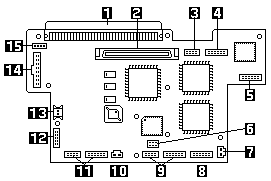
Locations System Board

  1. System Expansion Connector (150-pin)
  2. Display Control Card
  3. Serial Connector
  4. I/O Panel (Parallel/External Input)
  5. Indicator Card
  6. Password-Override Connector
  7. Backup Battery
  8. Communication Interface (Modem/Serial)
  9. Diskette Drive
  10. Thermal Sensor
  11. Hard Disk Drive
  12. Trackball/Keyboard Card Connector
  13. Dew Point Sensor
  14. Voltage Converter
  15. Voltage Converter

d2na0345

Parts Listing #

d2na0190

Safety Notice 8 #

warn3  Safety Notice 8

Before removing any FRU, power-off the computer, unplug all power cords from electrical outlets, remove the battery pack, then disconnect any interconnecting cables.

Avant de retirer une unité remplaçable en clientèle, mettez le système hors tension, débranchez tous les cordons d'alimentation des socles de prise de courant, retirez la batterie et déconnectez tous les cordons d'interface.

Die Stromzufuhr muß abgeschaltet, alle Stromkabel aus der Steckdose gezogen, der Akku entfernt und alle Verbindungskabel abgenommen sein, bevor eine FRU entfernt wird.

Prima di rimuovere qualsiasi FRU, spegnere il sistema, scollegare dalle prese elettriche tutti i cavi di alimentazione, rimuovere la batteria e poi scollegare i cavi di interconnessione.

Antes de quitar una FRU, apague el sistema, desenchufe todos los cables de las tomas de corriente eléctrica, quite la batería y, a continuación, desconecte cualquier cable de conexión entre dispositivos.

Safety Notice 1. #

warn3  Safety Notice 1

Before the computer is powered-on after FRU replacement, make sure all screws, springs, or other small parts are in place and are not left loose inside the computer. Verify this by shaking the computer and listening for rattling sounds. Metallic parts or metal flakes can cause electrical shorts.

Avant de remettre l'ordinateur sous tension après remplacement d'une unité en clientèle, vérifiez que tous les ressorts, vis et autres pièces sont bien en place et bien fixées. Pour ce faire, secouez l'unité et assurez-vous qu'aucun bruit suspect ne se produit. Des pièces métalliques ou des copeaux de métal pourraient causer un court-circuit.

Bevor nach einem FRU-Austausch der Computer wieder angeschlossen wird, muß sichergestellt werden, daß keine Schrauben, Federn oder andere Kleinteile fehlen oder im Gehäuse vergessen wurden. Der Computer muß geschüttelt und auf Klappergeräusche geprüft werden. Metallteile oder -splitter können Kurzschlüsse erzeugen.

Prima di accendere l'elaboratore dopo che é stata effettuata la sostituzione di una FRU, accertarsi che tutte le viti, le molle e tutte le altri parti di piccole dimensioni siano nella corretta posizione e non siano sparse all'interno dell'elaboratore. Verificare ci• scuotendo l'elaboratore e prestando attenzione ad eventuali rumori, eventuali parti o pezzetti metallici possono provocare cortocircuiti pericolosi.

Antes de encender el sistema despues de sustituir una FRU, compruebe que todos los tornillos, muelles y demás piezas pequeñas se encuentran en su sitio y no se encuentran sueltas dentro del sistema. Compruébelo agitando el sistema y escuchando los posibles ruidos que provocarían. Las piezas metálicas pueden causar cortocircuitos eléctricos.

Power Systems Checkout #

Note: One or all of the batteries can discharge if there is a short circuit in the computer.

NOTE: One or all of the batteries can discharge if there is a short circuit in the computer.

  1. Replace the failing FRU if the power supply problem is caused by  a short circuit.
  2. Determine if one (or all) of the batteries have become discharged.  Replace a discharged battery with a known-good spare.
  3. Observe the Battery ID indicators or swap the two battery packs  to determine which one has become discharged.

The test procedures for each power supply are found on the following pages.

Testing the AC Adapter

Testing the Battery Pack

Testing the Backup Battery

None of the above ? Follow the steps below.

Step 001: DID THE PROBLEM OCCUR ONLY WHEN USING THE AC ADAPTER ? Go to Step 004
Step 003: Go to 'Testing the AC Adapter', If that does not correct the problem, replace the voltage converter.
Step 004: DID THE PROBLEM OCCUR ONLY ON BATTERY POWERED OPERATION ? Go to Step 007
Step 006: - Make sure the battery packs are fully charged. - Go to 'Testing the Battery Pack' and check the battery packs. If that does not correct the problem, replace the voltage converter.
Step 007: DO ALL SYSTEM STATUS INDICATORS REMAIN OFF AFTER POWER ON ? Go to Step 016
Step 009: - Remove the following if installed: ° Battery packs ° Backup battery ° IC DRAM card ° Internal Data/Fax modem ° Serial adapter ° Numeric keypad ° Math coprocessor ° Mouse ° External display - Go to Step 010
Step 010: - Plug in the AC adapter and power-on the computer. DOES ANY INDICATOR REMAIN ON ? - Power-off the computer and remove the following. ° Hard disk drive ° Diskette drive ° LCD cables ° Keyboard flexible cables - Power-on the computer again. +-+-+          - Go to Step 013 Suspect one of the options or devices. - Reinstall each of the options or devices to the computer one at a time, and power-on the computer to see if the original problem occurs. - Replace the last installed option or device when the problem occurs.
Step 013: DOES ANY INDICATOR REMAIN ON ? - Replace the following FRUs one at a time until the problem is corrected ° Indicator card ° System board +-+-+            ° Voltage converter Suspect one of the devices. - Reinstall each of the devices to the computer one at a time, and power-on the computer to see if the original problem occurs. - Replace the last installed device when the problem occurs.
Step 016: - Observe the system-status indicators for about 1 second after power on. System-Status Indicator   Condition A   Condition B Power-On                  Off           On Suspend Mode              Off           On Scroll Lock               On            Off Caps Lock                 On            Off Numeric Lock              On            Off Diskette Drive            On            Off Hard Disk Drive           On            Off Battery ID 2              Off           On Battery Status 2          Off           On Battery ID 1              Off           On Battery Status 1          Off           On Carrier Detect            -             -

If the status lights match either condition A or B, replace the voltage converter. If the status lights are different from condition A or B, or replacing the voltage converter does not correct the problem, go to 'Undetermined Problem'

Power-on Password #

passpi   Power-on Password

To service a computer with an active, unknown, power-on password, do the following.

  1. Power-off the computer and unplug the power cord.
  2. Remove the keyboard and top cover.
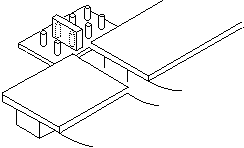
  3. Locate the override connector on the system board.  Some models use connector J12 (8 pins shown below). Other models  use connector J13 (a 2-pin connector).
  4. Install a jumper over the pins of the connector as shown.
  5. Power-on the computer to erase the password.
  6. After POST completes, remove the jumper. Otherwise, you will  not be able to reset a power-on password.

d2na6400

To set the password, start the system programs, select Set features from the Main Menu, then select Set password and unattended start mode, and follow the instructions on the screen.

Testing the AC Adapter #

If the Power-On indicator is not on, check the power cord of the AC adapter for proper installation and continuity.

  1. If any noise can be heard from the AC adapter when it is  plugged into line voltage, replace  the AC adapter with a new one.

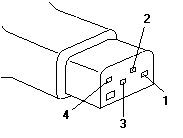
If no noise can be heard from the adapter,  go to Step 2.- If the noise still comes from the new AC adapter, suspect  the computer. Replace the AC adapter with the original one, then  go to the next step. If no noise comes from the new adapter,  the original adapter has the problem.- Unplug the AC adapter cable from the computer and  measure the output voltages at the plug of the AC adapter cable.  Connect the minus lead of the volt-ohm meter to pin 3 during  the measurement.

d2na0770 

Pin Voltage (Vdc)
1 +18 to +22
2 +17 to +21
3 GND
4 Communication GND
  • If the voltages are not correct:
  1. Unplug the AC adapter from the ac power outlet and leave it for  a few minutes.
  2. Plug the AC adapter into the ac outlet.
  3. Measure the output voltages of the AC adapter.
  4. If the voltages are still not correct, replace the AC adapter.
  • If the voltages are OK, plug the cable into the computer  and try the failing operation again.

If the problem still remains, replace the voltage converter. If the problem disappeared, suspect the installation and continuity of the AC adapter cable.

Testing the Battery Pack #

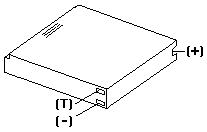
  1. Remove each battery pack and measure the voltage at the  battery terminals between (+) and (-).

d2na0782 

Terminal Voltage (Vdc)
(+) +12 to +18
( T ) Thermal Detection
( - ) Ground
  • If the voltage is less than +12 V dc, the battery pack is  discharged or defective.
  • If the voltage is more than +12 V dc,  go to the next step.
  • Using a low-power ohm meter, measure the resistance at  the battery terminals between

    (T) and (-).  The resistance must be 500 ohms to 20 kilohms.

    If the resistance is out of range, replace the battery pack.

Testing the Backup Battery #

  1. Remove the keyboard and the top cover.
  2. Disconnect the battery connector from the system board.
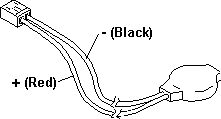
  3. Measure the voltage of the backup battery.

d2na0792 

Wire Voltage (Vdc)
Red +2.5 to +3.7
Black Ground

If the voltage is correct, replace the system board. If it is not, the backup battery is discharged by a short circuit or is defective.

Printer Checkout #

  1. Make sure the printer is correctly connected and is powered-on.
  2. Run the printer self-test.

If the printer self-test does not run correctly, the problem is in the printer. Refer to the printer service manual.

If the printer self-test runs correctly, do the following.

  1. Verify the port settings in configuration.
  2. Install a wrap plug on the port (indicated in configuration)  and run the advanced diagnostic tests.
  3. If the advanced diagnostic tests (with the wrap plug installed)  do not detect a failure, replace the printer cable. If the problem is not corrected, replace the system board.

Fax/Modem Checkout #

Step 004: - Check the PSTN cable and the DAA cable, if installed, for continuity. IS THE CABLE(S) GOOD? +-+-+         Replace the defective cable(s). - Have the customer transmit a call. WAS THE CALL TRANSMITTED SUCCESSFULLY? +-+-+         Go to step 011 - Have the customer receive an incoming call on the modem. WAS THE INCOMING CALL RECEIVED? +-+-+         Go to step 014 The diagnostic tests have completed successfully.  If you still suspect a problem that is not software related, replace the External DAA, then replace the modem.
Step 011: - Have the customer transmit a call at a lower speed. WAS THE CALL TRANSMITTED SUCCESSFULLY? If installed, replace the external DAA. If you do not have an external DAA installed, or replacing the external DAA does not correct +-+-+         the problem, replace the modem. Have the telephone line checked.
Step 014: - Have the customer receive an incoming call on the modem at a lower speed. WAS THE INCOMING CALL RECEIVED? If installed, replace the external DAA. If you do not have an external DAA installed, or replacing the external DAA does not correct +-+-+         the problem, replace the modem. Have the telephone line checked.
Step 001: - Power-off the computer. - Ensure that the modem is installed correctly. - If the modem never worked in customer mode, ensure that all drivers are loaded correctly onto the computer. - Ensure that the communication program is supported on the computer. - Ensure that the public switch telephone network (PSTN) cable and the data access arrangement (DAA) cable, if installed, are connected correctly. If you need to correct one of the above conditions, do so now, then continue. NOTE: PCMCIA cards can be inserted and removed while the system is powered on - Power-on the system. - Insert the IBM Data/FAX Modem diskette into the default diskette drive. - If you are servicing a High Speed Internal Data/Fax Modem (Models FC3632 and FC3650), at the DOS prompt (for example, A:), type IBMDIAG, then press Enter. - If you are servicing a PCMCIA Data/FAX Modem (Models FC3634 and FC3635), at the DOS prompt (for example, A:), type ESTDIAG, then press Enter. - Follow the instructions on the screen.  (If you need help, press F1.) DID THE DIAGNOSTIC TESTS DETECT AN ERROR? The diagnostic tests have completed successfully. +-+-+         If you suspect a problen, go to step 004 Go to the Symptom-to-FRU Index for the computer you are servicing.
Step 004: - Check the PSTN cable and the DAA cable, if installed, for continuity. IS THE CABLE(S) GOOD? +-+-+         Replace the defective cable(s). - Have the customer transmit a call. WAS THE CALL TRANSMITTED SUCCESSFULLY? +-+-+         Go to step 011 - Have the customer receive an incoming call on the modem. WAS THE INCOMING CALL RECEIVED? +-+-+         Go to step 014 The diagnostic tests have completed successfully.  If you still suspect a problem that is not software related, replace the External DAA, then replace the modem.
Step 011: - Have the customer transmit a call at a lower speed. WAS THE CALL TRANSMITTED SUCCESSFULLY? If installed, replace the external DAA. If you do not have an external DAA installed, or replacing the external DAA does not correct +-+-+         the problem, replace the modem. Have the telephone line checked.
Step 014: - Have the customer receive an incoming call on the modem at a lower speed. WAS THE INCOMING CALL RECEIVED? If installed, replace the external DAA. If you do not have an external DAA installed, or replacing the external DAA does not correct +-+-+         the problem, replace the modem. Have the telephone line checked.

External Keyboard / Auxiliary Input Device Checkout #

The following auxiliary input devices may be available for IBM ThinkPad models.

  • Numeric keypad
  • Mouse (PS/2 compatible)
  • External keyboard (with Keyboard/Miniature Mouse cable)
  • If you suspect a problem with any of the auxiliary input devices  (listed above), replace the device.

If the problem is not corrected, replace the following FRUs one  at a time to correct the problem.

  • Keyboard control card
  • System board
  • If the computer receives an incorrect keyboard response,  remove other external devices, check the keyboard connections, and recheck  the keyboard responses. If the problem remains, replace the following FRUs  one at a time to correct the problem.

    • Keyboard
    • Keyboard control card
    • System board
    • If a 00030100 error message appears,  power-off the computer and the external devices.  Then power-on the computer before you power-on the external devices.

External Display Self-Test #

Note: Before you replace a display, check the following list to see if it is connected correctly.

Note: The location of the test margin varies with the type of display. The  test margin might be on the top, bottom, or one or both sides.

If the display problem occurs only when using an external display, use the following instructions to correct the problem.

Note: Before you replace a display, check the following list to see if it is connected correctly.

  • 8506 and 8508 displays must be connected to an Image Adapter/A or an  Image-I Adapter/A.
  • 63XX and 85XX systems support either 63XX or 85XX displays.
  • 85XX systems with an XGA-2 adapter support 95XX displays.
  • 95XX systems support either 63XX, 85XX, or 95XX displays.
  • ThinkPad models support either 85XX or 95XX displays.

If the screen is rolling, replace the display assembly. If that does not correct the problem, replace FRUs in the following order until the problem goes away:

  1. Video card
  2. Display adapter (any type)
  3. System board
  4. Bus adapter (if used)

If the screen is not rolling, run the display self-test as follows:

  1. Power-off the computer and display.
  2. Disconnect the display signal cable.
  3. Power-on the display.
  4. Set the contrast to its maximum position.
  5. Set the brightness control to the center detent position.

Check for the following conditions:

  • You should be able to vary the screen intensity by adjusting the contrast  and brightness controls.
  • The screen should be white or light gray,  with a black margin (test margin) on the screen. NOTE: The location of the test margin varies with the type of display. The  test margin might be on the top, bottom, or one or both sides.

If you do not see a test margin on the screen, replace the display. If there is a test margin on the screen, replace the system board.

On ThinkPad Models 700, 700C, 720C, 720C, do the following:

  1. Video card
  2. System board

Memory Checkout #

Customer diagnostics can eliminate defective memory so no memory error code appears at power-on reset. After you replace a defective memory module on the system board or IC DRAM card, run Automatic Configuration. Otherwise, the new memory will not be recognized. (If you have to run configuration with your own diskette, be sure the customer has all the correct option diskettes available.) Power-off the computer before removing or replacing parts.

Step 001: - Remove all IC DRAM cards from the slots if installed. - Run the memory tests. Use the RUN TESTS ONE TIME option. DID THE MEMORY TESTS END WITHOUT AN ERROR ? Replace the memory module on the system board.
Step 003: DID YOU REMOVE THE IC DRAM CARD FROM SLOT 1 ? Go to Step 007
Step 005: - Reinstall the IC DRAM card into slot 1 and run Automatic Configuration - Run the memory test. Use the RUN TESTS ONE TIME option. DID THE MEMORY TESTS END WITHOUT AN ERROR ? Replace the IC DRAM card in slot 1. If that does not correct the problem, +-+-+           replace the system board. DID YOU REMOVE THE IC DRAM CARD FROM SLOT 1 ? Go to Step 011.
Step 009: - Reinstall the IC DRAM card into slot 2 and run Automatic Configuration - Run the memory test. Use the RUN TESTS ONE TIME option. DID THE MEMORY TESTS END WITHOUT AN ERROR ? Replace the IC DRAM card in slot 2. If that does not correct the problem, +-+-+           replace the system board. If the problem occurs intermittently, run the memory tests multiple times to have an error log.

Miscellaneous Symptoms #

Note: A no beep symptom can be caused by incorrect volume setting of the speaker. Set the speaker volume to its maximum position.

NOTE: A no beep symptom can be caused by incorrect volume setting of the speaker. Set the speaker volume to its maximum position.

Symptom/Error FRU/Action
A no beep and a blank or unreadable display during POST. (See 'Power Systems Checkout' before replacing any FRUs.) 1. System Board
2. Voltage Converter
3. Communications Cartridge
4. Hard Disk Drive
5. Display Control Card
6. Any options
7. Power source when failing
A no beep with a blinking cursor. 1. System Board
2. Display Control Card
3. Communications Cartridge
A no beep with a normal display during POST. 1. Speaker
2. Indicator Card
3. System Board
4. Keyboard Control Card
A no beep and the computer hangs after displaying memory count. 1. System Board
2. Communications Cartridge
3. Hard Disk Drive
LCD too dark, unable to adjust contrast or brightness. (See 'CL57LCD FRU Replacement Notice' before replacing any FRUs.) 1. LCD Panel
2. Regulator
3. Voltage Converter
LCD unreadable or illegible. (See 'CL57 LCD FRU Replacement Notice' before replacing any FRUs.) 1. LCD Panel
2. Display Control Card
3. LCD Cable
Missing or discolored dots on the LCD panel. 1. See 'CL57 LCD FRU Replacement Notice'
Unable to turn the LCD on and off. 1. Regulator
2. Voltage Converter
3. LCD Cable
Blank screen, or extra horizontal or vertical line(s) displayed on upper or lower half of the LCD. (See 'CL57 LCD FRU Replacement Notice' before replacing any FRUs.) 1. LCD Panel
2. Display Control Card
3. LCD Cable
Four battery indicators are blinking. Battery ID 1 Battery Status 1 Battery ID 2 Battery Status 2 1. Voltage Converter
2. System Board
System status indicator is incorrectly blinking or stays on. 1. Related Device
2. System Board
3. Indicator Card
System status indicator stays off, but the POST ends without an error 1. Indicator Card
2. System Board
3. Related Device
Reference Diskette does not work. (Try another Reference Diskette or any bootable diskette before replacing FRUs. Ensure all correct level drivers are loaded.) 1. Diskette Drive
2. System Board
3. Diskette Drive Cable
4. Reference Diskette
Keyboard does not work. 1. Keyboard Control Card
2. Keyboard Cable
3. Numeric Keypad if used
4. System Board
One or more keys do not work. (See 'Ext. Keyboard/Aux. Input Device Checkout' before replacing any FRUs.) 1. Keyboard
2. Numeric Keypad
3. Keyboard Control Card
External display problems. (See 'External Display Self-Test' before replacing any FRUs.) 1. External Display
2. Display Control Card
Incorrect memory size during POST. (See 'Memory Checkout' before replacing any FRUs.) 1. System Board
2. Memory Module
3. IC DRAM Card
Computer hang or Intermittent hang. (See 'Undetermined Problem' before replacing any FRUs.) 1. System Board
2. Hard Disk Drive Cable
3. Hard Disk Drive
4. Replace the last device being tested
5. Display Control Card
6. Memory Module
7. IC DRAM Card
8. Voltage Converter
The computer goes into suspend mode after the POST. 1. System Board
2. Voltage Converter
3. Lid Switch
4. Keyboard Control Card
The computer does not suspend or resume. 1. System Board
2. Voltage Converter
3. Lid Switch
4. Keyboard Control Card
The computer does not power off. 1. Voltage Converter
2. System Board
1. Indicator Card
Real-time clock inaccurate. (See 'Testing the Backup Battery' before replacing any FRUs.) 1. Backup Battery
2. System Board
Printer problems. 1. See 'Printer Checkout'
Serial or parallel port device problems. 1. Device
2. Cable
3. System Board
4. Serial Adapter (if attached)
5. I/O Panel Assembly
Internal Data/Fax modem does not communicate with a remote modem or a fax 1. See 'Fax/Modem Checkout'

Undetermined Problem #

You are here because the diagnostics tests did not identify the failing FRU.

Check the power supply in use (see 'Power Systems Checkout'). If the power supply is operating correctly, return here and continue with the following procedure.

  1. Power-off the computer and remove the battery packs from the  computer.- Remove or disconnect one of the following devices or adapter  (do not isolate FRUs that are known to be good).

    1. Non-IBM devices
    2. Modem, printer, mouse, or other external device
    3. IC DRAM card
    4. Hard disk drive (fixed disk drive) or diskette drive
    5. Communications cartridge
    6. Any adapter and device
    • Power-on the computer and start the system program.
    • Press Ctrl+A to run the system  checkout. Do not configure the computer. If diagnostics cannot be loaded  from the hard disk, try and load them from the Reference  Diskette. Test only those adapters and devices still attached to the  computer.
    • If the symptom remains, repeat steps 1 through 3 until you find  the failing FRU or until all FRUs have been removed.
    • If all of the FRUs listed have been removed and the problem remains,  replace the system board.

Checking Installed Devices #

The Installed Devices List shows the presence of devices in the computer. If an adapter or device is missing from the list, you might have one of the following conditions.

warn  A customized setup configuration (other than default settings) might exist on the computer you are servicing. Running Automatic Configuration can alter those settings. Note the current configuration settings (using the View configuration) and verify that the same settings are in place when service is complete.
  • The protected partition on the hard disk or the Reference  Diskette you are using does not contain the code required to support  that device.
  • An adapter or device is defective.
  • The device missing from the list is an unrecognizable drive or  adapter.
  • The device missing from the list requires an additional diskette.
  • A power supply voltage is incorrect (see 'Power Systems Checkout' ).

If the adapter is on the list, run the adapter diagnostics tests. If the list contains an adapter or device that is not installed, go to 'Undetermined Problem'

Hard Disk Partition #

A protected partition on the hard disk contains the system configuration data set, system setup programs, and customer and advanced diagnostics. System setup and diagnostic programs can be loaded from this partition by pressing and holding Ctrl+Alt+Del and, as soon as the cursor moves to the upper right corner of the display, pressing and holding Ctrl+Alt+Ins.

Restoring the Partition #

Note: After the programs have been restored, the Diskette and F1 prompts appear, unless an operating system is present.

If a computer or hard disk problem prevents system setup or diagnostic programs from being loaded from the protected partition, load and run the programs from the Reference Diskette. If no errors are found, restore the programs to the protected partition on the hard disk using the following procedure.

  1. Start the computer with the customer's backup  copy of the Reference Diskette installed.
  2. Select the Backup/Restore system programs from the  Main Menu.
  3. Select the Restore the system partition to  load the system setup and utility programs, and  the customer and advanced diagnostics  programs onto the system partition of the hard disk.

If this does not correct the problem, use the backup copy of the Reference Diskette to format the hard disk and then restore the programs to the protected partition. If the problem remains, return to the I998XXXX, I9990303 error code (in the 'Symptom-to-FRU Index')

NOTE: After the programs have been restored, the Diskette and F1 prompts appear, unless an operating system is present.

Screw Size Chart #

Use the chart to match the size and shape of the screws in the computer you are servicing.

screws1