Overview #
Introduction: The ThinkPad 770 is a massive, high-performance multimedia powerhouse and one of the first laptops to support a DVD-ROM drive.
Machine Type 9548 · 1997-99 · 33 sections
ThinkPad 770, 770E, 770ED, 770X, 770Z.
Introduction: The ThinkPad 770 is a massive, high-performance multimedia powerhouse and one of the first laptops to support a DVD-ROM drive.
ThinkPad Common Parts List
Common Parts Listing
This section contains FRUs common to most IBM portable, laptop, and notebook computers.
External Diskette Drives
| 5.25-Inch Diskette Drives: | |
|---|---|
| 360KB External (4869-001) | 72X6759 |
| 360KB External (4869-501) | 72X6768 |
| 1.2MB External (4869-002) | 15X7993 |
| 1.2MB External (4869-502) | 15X7994 |
| Hard Disk Drive. | |
| 1.2GB HDD (for all 9545) | 85G8549 |
| 5.25-Inch Drive Adapter | 72X6757 |
| 5.25-Inch Drive Adapter/A | 15F7996 |
| 5.25-Inch External Diskette Drive Cable | |
| (from system board to adapter) | 27F4211 |
| Diskette Drive Bus Adapter | 72X8524 |
CD-ROM Drives
| Enhanced Internal CD-ROM II Drive | |
|---|---|
| (Eject button below slot) | 61G1901 |
| Internal CD-ROM I Drive | |
| (Eject button above slot) | 81F7930 |
| Terminator Kit (for 81F7930) | 59F3530 |
| Cleaning Kit (for 81F7930) | |
| (Disks, CD Caddy) | 59F3562 |
| Internal CD-ROM II Drive | |
| (Eject button below slot) | 92F0084 |
| Terminator Kit (for 92F0084) | 92F0082 |
| Media Kit (for 92F0084) | |
| (No cleaning necessary, | |
| Test Disk, CD Caddy) | 31F4232 |
| Signal Cable | 34F0043 |
| Power Cable | 72X8521 |
| Remote ID Switch Cable (3510) | 92F0086 |
| Audio Card, Cable, Screws (3510) | 92F0085 |
| CD Caddy | 22F9419 |
| Rail Kit (3510) | 34F0041 |
| Headphones | 53F3610 |
SCSI Adapters, Terminators, Cables
| SCSI Adapter/A (without Cache) | 85F0002 |
|---|---|
| SCSI Internal Cable | 64F4127 |
| SCSI Adapter/A (with Cache) | 85F0063 |
| Terminator, External (for 85F0063) | 33F8464 |
| Terminator, Internal (for 85F0063) | 34F0025 |
| Terminator, Internal (for 85F0002) | 57F2870 |
| SCSI Fast Adapter (16 bit) | 92F0330 |
| SCSI External Cable (for 92F0330) | 32G4089 |
| SCSI Internal Cable (for 92F0330) | 32G0084 |
| Terminator, Inline (space permitting) | 92F0412 |
Rewritable Optical Drives
| 3.5-Inch Rewritable Optical Drive | 92F0167 |
|---|---|
| Rewritable Optical Cartridge | 38F8647 |
| Rewritable Optical Cartridge (5 Pack) | 38F8646 |
| Drive Mounting Slide (for 92F0167) | 85F0022 |
| Tray with Bezel (for 92F0167) | 85F0021 |
| Objective Lens Cleaner (for 92F0167) | 38F8681 |
| Prism Lens Cleaner (for 92F0167) | 38F8682 |
| 3.5-Inch Enhanced Rewritable Optical Drive | 92F0167 |
| Mounting Tray | 92F0269 |
| Mounting Tray/Bezel (Model 3510) | 92F0268 |
External Keyboard/Mouse
| Keyboard Cable | 72X8537 |
|---|---|
| Mouse | 61X8923 |
| Mouse Ball and Pop-Off Retainer | 33F8461 |
| Mouse Ball and Twist-Off Retainer | 33F8462 |
| Mouse (New Style) (33G5420) | 06H4595 |
| Mouse Retainer Ring | 33G5417 |
| Miniature Mouse | 95F5723 |
Enhanced Keyboards (101/102 Key)
| Country | FRU P/N |
|---|---|
| Arabic | 1391490 |
| Belgian | 1391414 |
| Canadian French | 1392011 |
| Cyrillic | 1393866 |
| Danish | 1391407 |
| Dutch | 1391511 |
| French | 1391402 |
| German | 1391403 |
| Greek | 1393285 |
| Hebrew | 1391408 |
| Italian | 1393395 |
| Latin American Spanish | 1392015 |
| Norwegian | 1391409 |
| Portuguese | 1391410 |
| Russian/Cyrillic | 1395622 |
| Spanish | 1391405 |
| Swedish/Finnish | 1391411 |
| Swiss | 1391412 |
| Swiss/French | 1395881 |
| Swiss/German | 1395882 |
| Turkish | 1393286 |
| U.K. English | 1391406 |
| U.S. English (E/ME/A use only) | 1396790 |
| U.S. English | 1392090 |
| Yugoslavian | 1393669 |
Optional Enhanced Keyboards (101/102 Key)
| with PS/2 Style Cable | 59G7980 |
|---|---|
| with AT Style Cable | 59G7981 |
| with 25mm PS/2 Trackball | 59G7982 |
| with 25mm Serial Trackball | 59G9757 |
Keybutton Kits (101/102 Key)
| Keybutton Kits (R), Belgian | 1392033 |
|---|---|
| Keybutton Kits (R), Canadian French | 1392032 |
| Keybutton Kits (R), Danish | 1392026 |
| Keybutton Kits (R), Dutch | 1392034 |
| Keybutton Kits (R), French | 6447047 |
| Keybutton Kits (R), German | 6447048 |
| Keybutton Kits (R), Italian | 6447049 |
| Keybutton Kits (R), Norwegian | 1392028 |
| Keybutton Kits (R), Portuguese | 1392029 |
| Keybutton Kits (R), Spanish | 6447050 |
| Keybutton Kits (R), Spanish / Latin | 1392035 |
| Keybutton Kits (R), Swedish | 1392030 |
| Keybutton Kits (R), Swiss / French / German | 1392031 |
| Keybutton Kits (R), U.K. English | 6447046 |
| Keybutton Kits, U.S. English | 6447045 |
Japanese Keyboard Type 2 (106 Key, DBCS Support)
| Japanese Keyboard | 94X1110 |
|---|---|
| Keyboard Cable | 94X1147 |
Space-Saving Keyboards (84/85 Key)
| Canadian French | 1396046 |
|---|---|
| Spanish/Latin | 1396047 |
| U.S. English | 1393290 |
| Cable Assembly, External | 1393082 |
Tools and Miscellaneous
| Audio Wrap Cable | 66G5180 |
|---|---|
| Ethernet BNC T-Connector | 84F8207 |
| Ethernet BNC 50-ohm Terminator | |
| (2 required) | 85F0037 |
| Grounding Wire Set | 38F4684 |
| Keyboard Key Cap Removal Tool | 6110464 |
| PC Test Card | 33G4703 |
| Screwdriver Kit | 95F3598 |
| SCSI Terminator | |
| (any SCSI device, space permitting) | 92F0142 |
| SCSI Terminator Kit | |
| (R-PAC Terminator Modules (3) for 40, 60, | |
| 80, 120, and 160MB SCSI Hard Disk Drives) | 92F0143 |
| Wrap Plug Ethernet D-Shell | 85F0036 |
| Wrap Plug, Tri-Connector | 72X8546 |
| Wrap Plug (6157 Tape Attachment Adapter/A) | 4178459 |
| Wrap Plug (Token-Ring Network Adapter/A) | 6165899 |
| Plastic Envelope (For Wrap Plug) | 6138013 |
Use the ThinkPad Features program or PS2.EXE. to power-on the TV Tuner, then power-on the internal device in the diskette drive compartment.
If power for the internal device is turned off
when the TV Tuner is set up,
nothing appears on the LCD display.
Turn on power for the TV Tuner again.
If you are using DOS, do one of the following:
If you are using OS/2 or Microsoft Windows, do the following:
Note: For Model 760CD, 760ED, 760LD, and 760ELD, there are two types of adapters. The procedure for checking both types is the same.
Note: An audible noise from the AC Adapter does not always indicate a defective adapter.
You are here because the computer fails only when the AC Adapter is used.
NOTE: For Model 760CD, 760ED, 760LD, and 760ELD, there are two types of adapters. The procedure for checking both types is the same.
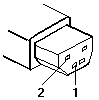
(20 - 10 V)
| Pin | Voltage (Vdc) |
|---|---|
| 1 | +18.0 to +21.0 |
| 2 | Ground |
(16 - 10 V)
| Pin | Voltage (Vdc) |
|---|---|
| 1 | +14.5 to +17.0 |
| 2 | Ground |
NOTE: An audible noise from the AC Adapter does not always indicate a defective adapter.
To check operational charging, use a discharged battery pack or a battery pack that has less than 50% of the total power remaining when installed in the computer.
Perform operational charging. If the battery status indicator does not turn on, remove the battery pack and leave it to return to room temperature. Reinstall the battery pack. If the charge indicator still does not turn on, replace the battery pack.
Note: Signal lines, not used in these steps, are used for communication between the system and the battery.
Note: If the voltage of the battery pack is 0 V, it is not defective.
Battery charging will not start until the Fuel-Gauge shows that less than 95% of the total power remains; with this condition the battery pack will charge to 100% of its capacity. This protects the battery pack from being overcharged or having a shortened life.
Do the following:
Power-off the computer.- Remove the battery pack and measure the voltage between battery terminals 1 (+) and 4 (-).
| Terminal | Voltage (Vdc) / Signal |
|---|---|
| 1 | +0 to +13.5 |
| 2 | Send |
| 3 | Thermal |
| 4 | Ground (-) |
| 5 | Select |
NOTE: Signal lines, not used in these steps, are used for communication between the system and the battery.
If the voltage is less than +11.0 Vdc, the battery pack has been discharged. Recharge the battery pack.
NOTE: If the voltage of the battery pack is 0 V, it is not defective.
If the resistance is not correct, replace the battery pack.
If the resistance is correct, replace the DC/DC card.
Note: If the adapter is already plugged in, reseat it.
Note: If the output voltage from the cigarette lighter socket of the car is less than 10.5 Vdc, a continuous noise may be heard. The condition of the car battery should be checked by appropriate service personal.
Unplug the Car-Battery Adapter cable from the computer.- Plug the Car-Battery Adapter into the cigarette lighter socket.
NOTE: If the adapter is already plugged in, reseat it.
| Pin | Voltage (Vdc) |
|---|---|
| 1 | +19.0 to +21.0 |
| 2 | Ground |
If the voltage is correct, the Car-Battery Adapter is working correctly. Check that the computer runs with the AC Adapter.
If it runs correctly with the AC Adapter, check the system board.
If the problem still remains, replace the following FRUs one at a time.
If the problem is not resolved when the system board is replaced, go to 'Undetermined Problems'.- If the voltage is outside the normal voltage range, do one of the following:
NOTE: If the output voltage from the cigarette lighter socket of the car is less than 10.5 Vdc, a continuous noise may be heard. The condition of the car battery should be checked by appropriate service personal.
| Wire | Voltage (Vdc) |
|---|---|
| Red | +2.5 to +3.7 |
| Black | Ground |
Note: Removing and installing the battery pack during suspend mode should be done within one minute. The resume operation must start. If the resume operation does not work, switching of power from the battery pack to standby battery will not be correct. Replace the DC/DC card.
Be careful not to cause a short circuit when measuring the voltage.
If power shutdowns occur intermittently when using PCMCIA-2 devices via a port replicator, suspect a current overload. Some PCMCIA devices use much power, if the maximum usage of each device occurs simultaneously, the total current will exceed the limit, thereby causing a power shutdown. Isolate this problem by removing one of the devices, and use the computer under the same condition to see whether a power shutdown occurs.
Do this procedure for all devices, then determine the cause.
Be careful that the computer does not fall backward when the battery pack is removed.
Use the following procedure to isolate the diskette problem to a controller, drive or diskette. A scratch, write-enabled 2HD diskette is required.
Note: Before you replace a display, check the following list to see if it is connected correctly.
Note: The location of the test margin varies with the type of display. The test margin might be on the top, bottom, or one or both sides.
If the display problem occurs only when using an external display, use the following instructions to correct the problem.
Note: Before you replace a display, check the following list to see if it is connected correctly.
If the screen is rolling, replace the display assembly. If that does not correct the problem, replace FRUs in the following order until the problem goes away:
If the screen is not rolling, run the display self-test as follows:
Check for the following conditions:
If you do not see a test margin on the screen, replace the display. If there is a test margin on the screen, replace the system board.
On ThinkPad Models 700, 700C, 720C, 720C, do the following:
The following auxiliary input devices may be available for IBM ThinkPad models.
If you suspect a problem with any of the auxiliary input devices (listed above), replace the device.
If the problem is not corrected, replace the following FRUs one at a time to correct the problem.
If the computer receives an incorrect keyboard response, remove other external devices, check the keyboard connections, and recheck the keyboard responses. If the problem remains, replace the following FRUs one at a time to correct the problem.
If a 00030100 error message appears, power-off the computer and the external devices. Then power-on the computer before you power-on the external devices.
Note: PCMCIA cards can be inserted and removed while the system is powered on
If the printer self-test does not run correctly, the problem is in the printer. Refer to the printer service manual.
If the printer self-test runs correctly, do the following.
Use the following procedure to isolate a port replicator problem. A port replicator attaches to the system expansion connector at the rear of the computer.
If power shut downs occur intermittently when using PCMCIA-2 devices via a port replicator, suspect an over-current problem. Some PCMCIA devices use more power; if the maximum usage of each device occurs simultaneously, the total current will exceed the limit, thereby causing a power shut down. Isolate this problem by removing one of the devices, and use the computer under the same condition, and see whether a power shut down occurs. Do this procedure for all devices then determine the cause.
Customer purchase of the larger AC adapter (50W, optional) is recommended, if it is not yet in use.
Note: TrackPoint II automatically compensates to adjust the pointer sensor. This causes the pointer to move slightly on the screen and then stop. Pointer movement might occur when a slight, steady pressure is applied to the TrackPoint II pointer when the computer is powered-on or running, or when exceeded temperature range requires re-adjustment.
If the problem remains, continue.
NOTE: TrackPoint II automatically compensates to adjust the pointer sensor. This causes the pointer to move slightly on the screen and then stop. Pointer movement might occur when a slight, steady pressure is applied to the TrackPoint II pointer when the computer is powered-on or running, or when exceeded temperature range requires re-adjustment.
If the cursor floats or moves erratically, power-off and disconnect the mouse. Power-on the computer. If the problem goes away, replace the mouse. If the problem remains, replace the keyboard.- For click button or pointing stick problems:
If the pointing stick or the click button does not work, do the following.
The TV Tuner Pack (hereafter called TV Tuner) is an option for watching TV programs or videos on the IBM TFT color notebook computer. The computer changes to TV reception when the removable diskette drive is replaced with the TV Tuner.
The TV screen and normal computer display are easily switched by using the Hot key on the front panel of the TV Tuner.
Identifying Names and Functions
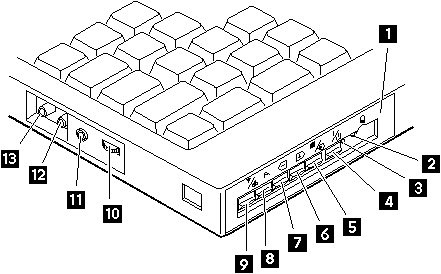
The following figure and table show the names and functions of each part of the TV Tuner.
| Icons | Functions |
|---|---|
| Front Panel | Used to change the TV channels, switch TV mode to computer mode, and operate most functions of the TV Tuner. |
Headphone Jack
|
Connects the headphones. |
| Power Indicator | Shows the TV Tuner is powered on. |
Power Switch
|
Powered on and off the TV Tuner. |
Hot Key
|
Switches between the TV screen and computer screen. |
Up Switch
|
Increases the value such as the channel number. |
Down Switch
|
Decreases the value such as the channel number. |
Function Key
|
Enters the mode to change the value of each function, such as TV channel or color contrast. (See 'Using the Function Key') |
TV/EXT Switch
|
Switches the TV mode or external video mode. |
Volume Knob
|
Controls the speaker volume. |
Audio-In Jack
|
Connects the audio-in connector of the AV cable. |
Video-In Jack
|
Connects video-in connector of the AV cable. |
RF Connector
|
Connects the active antenna unit or antenna cable. |
Using the Front Panel
The following table shows how to operate all functions of the TV Tuner with the controls on the front panel.
| Key | Function |
|---|---|
Power
|
Turns on the TV Tuner.
This key is used only when the computer is turned on. |
Hot Key
|
Switches computer display and TV screen. |
Up
|
Increases the value of parameters, Channel Number,
Color, Tint, Brightness, Contrast, Auto Tuning Sensitivity, On-screen Message Selection. |
Down
|
Decreases the value of parameters, Channel Number
Color, Tint, Brightness, Contrast, Auto Tuning Sensitivity, On-screen Message Selection. |
Function
|
Selects a function mode to adjust each function parameter.
(See Using the Function Key) |
TV/Ext
|
Switches the displayed video source between
the receiving TV broadcast program and external devices such as VCR, video camera recorder, laser disk, and so on. |
Model Unique
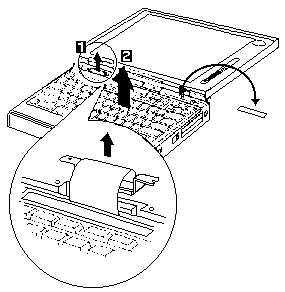
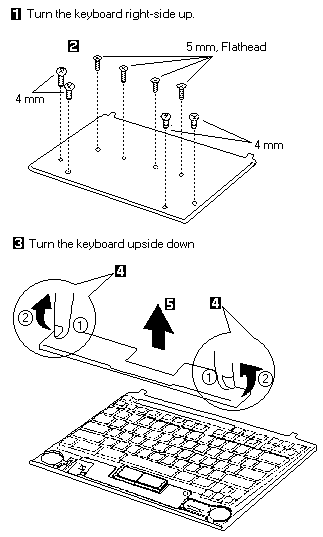
Note: When replacing the keyboard, affix the model number label.
NOTE: When replacing the keyboard, affix the model number label.
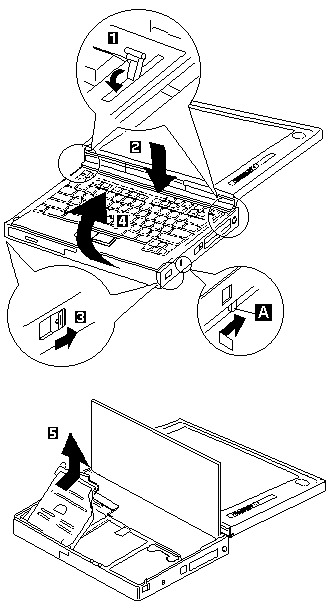
When replacing the keyboard unit, connect the keyboard connector as shown in the figure, then replace the keyboard.
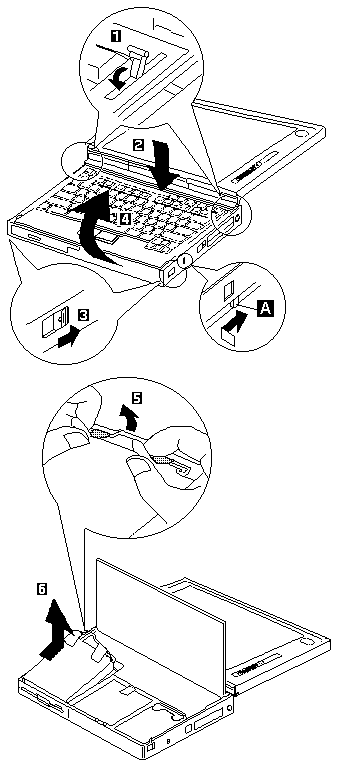
If the security latch A is at the left position, push and slide it to the right position (unlock).
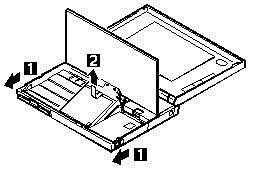
Remove the CD-ROM drive exactly as shown in the figure.
Do not apply any extra force to the CD-ROM drive when removing it.
If the security latch A is at the left position, push and slide it to the right position (unlock).
Note: If you cannot find a symptom or error in this list and the problem remains, see 'Undetermined Problems'.
| Symptom / Error | FRU / Action in Sequence |
|---|---|
| Errors occur only when Port | 1. See 'Port Replicator Checkout' in the |
| Replicator is used. | Common Devices Checkout section. |
| PCMCIA slot pin is damaged. | 1. PCMCIA slots assembly |
NOTE: If you cannot find a symptom or error in this list and the problem remains, see 'Undetermined Problems'.
You are here because the diagnostic tests did not identify which adapter or device failed, installed devices are incorrect, a short circuit is suspected, or the system is inoperative. Follow the procedures below to isolate the failing FRU (do not isolate nondefective FRUs).
Verify that all attached devices are supported by the computer.
Verify that the power supply being used at the time of the failure is operating correctly.
(See 'Power Systems Checkout'.)
Power-off the computer.- Check the cables, wires, and connectors for short circuits and open circuits. Visually check them for damage. If any problems are found, replace the FRU.- Remove or disconnect all of the following devices:
Each time you press the Function key
one of the following messages (called On-Screen Message)
appears at the top left corner of the LCD.
The changed values are automatically saved when you return to the TV Channel On-Screen message. The values are not saved when you power-off the TV Tuner without returning to this message.
| Message on LCD | Parameter |
|---|---|
| (xx) |
TV Channel:
By using <- and +> you can select the channels from 2 to 69. |
| COL |
Color Adjustment:
By pressing and holding <- or +> you can change the color. |
| TNT |
TINT Adjustment:
By pressing and holding <- or +> you can change the tint. |
| BRT |
Bright Adjustment:
By pressing and holding <- or +> you can change the brightness. |
| CNT |
Contrast Adjustment:
By pressing and holding <- or +> you can change the contrast. |
| --- | (No function) Reserved. |
| LO |
Auto Tune Sensitivity Selection:
LO: Means the sensitivity of the TV is low. In this mode, the TV Tuner receives strong TV signals only. To set LO, press <-. |
| HI |
Auto Tune Sensitivity Selection:
HI: Means the sensitivity of the TV is high (factory default). In this mode, the TV Tuner receives weak and strong TV signals. To set HI, press +>. |
| D3S |
Time On-Screen Message appears:
D3S: On-screen Message appears for 3 seconds. To set D3S, press <-. |
| DON |
Time On-Screen Message appears:
DON: On-screen Message always appears. To set DON press +>. |
The following table shows what to do to solve problems when the TV Tuner does not work correctly.
Problem Probable Cause
The TV Tuner ° Computer is not powered on.
does not operate. ° Computer is in suspend mode.
(No picture ° Volume control of the TV Tuner or computer
or sound) is not adjusted correctly.
° The power for the TV Tuner is not supplied.
(See Power-on the TV Tuner)
° The wall outlet from the outdoor antenna is not active.
° The video or antenna cable is not connected correctly.
° Antenna elements of the active antenna unit are not adjusted.
° The batteries in the active antenna unit are not inserted
correctly.
° The batteries in the active antenna unit are depleted.
° The TV Tuner is not set up correctly.
° You cannot watch TV or videos on the external display.
° LO is set for the auto tune sensitivity
selection.
No color. ° The program is not in color.
Snow and noise ° Switch the TV/EXT (
) button.
only.
Pictures are out For TV:
of shape, or have ° The channel is not tuned correctly.
double images. ° Adjust the antenna.
For VCR:
° Change the tracking adjustment.
Dotted lines ° Usually caused by interference from
or stripes. neon signs, hair dryers, and so on.
Move the computer to avoid the interference.
Picture control ° Do not power-off the TV Tuner
are not saved. when adjusting functions such as picture control,
color, tint, brightness, or contrast.
Channel number is ° Select your favorite mode for the on-screen message.
always displayed or
is not displayed.
Note: After replacing the hard disk drive, latch the removal strap into the correct position.
Do not drop or apply any shock to the hard disk drive.
The hard disk drive is sensitive to physical shock.
Incorrect handling can cause damage
and permanent loss of data on the hard disk.
Before removing the hard disk drive, have
the user make a
backup copy of all the information on the hard disk.
Never remove the hard disk drive while the system is operating or is in
suspend mode.
Remove the hard disk drive exactly as shown in the figure. Do not apply any extra force to the hard disk drive when removing it.
NOTE: After replacing the hard disk drive, latch the removal strap into the correct position.
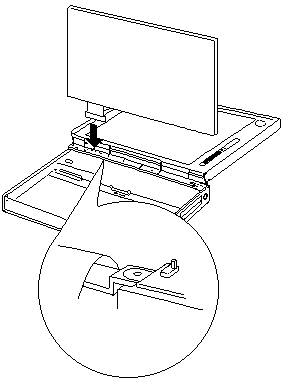
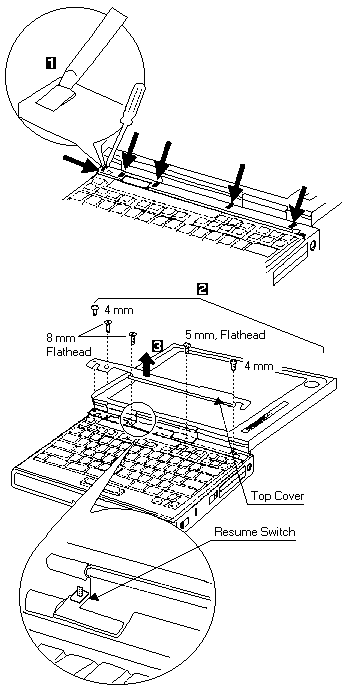
When replacing the top cover, be careful not damage the resume switch shown in the figure.